

Create a Target
The Console cannot create Targets yet. Use thevijil command line tool:
The Console calls this object a Target. The command line still calls it a
deployment, so every command that acts on a Target uses the
deployment-* name. They
are the same object.
The
id in the response is the Target identifier. Every command that acts on this Target
needs it.
The Targets Tab
Open Discover in the sidebar and choose the Targets tab. Filter chips across the top count Targets by kind: All, Endpoint, Browser, Network, Cloud, and Source code. A Kubernetes cluster counts under Network, because the in-cluster Collector and the network scanner report as the same scanner kind.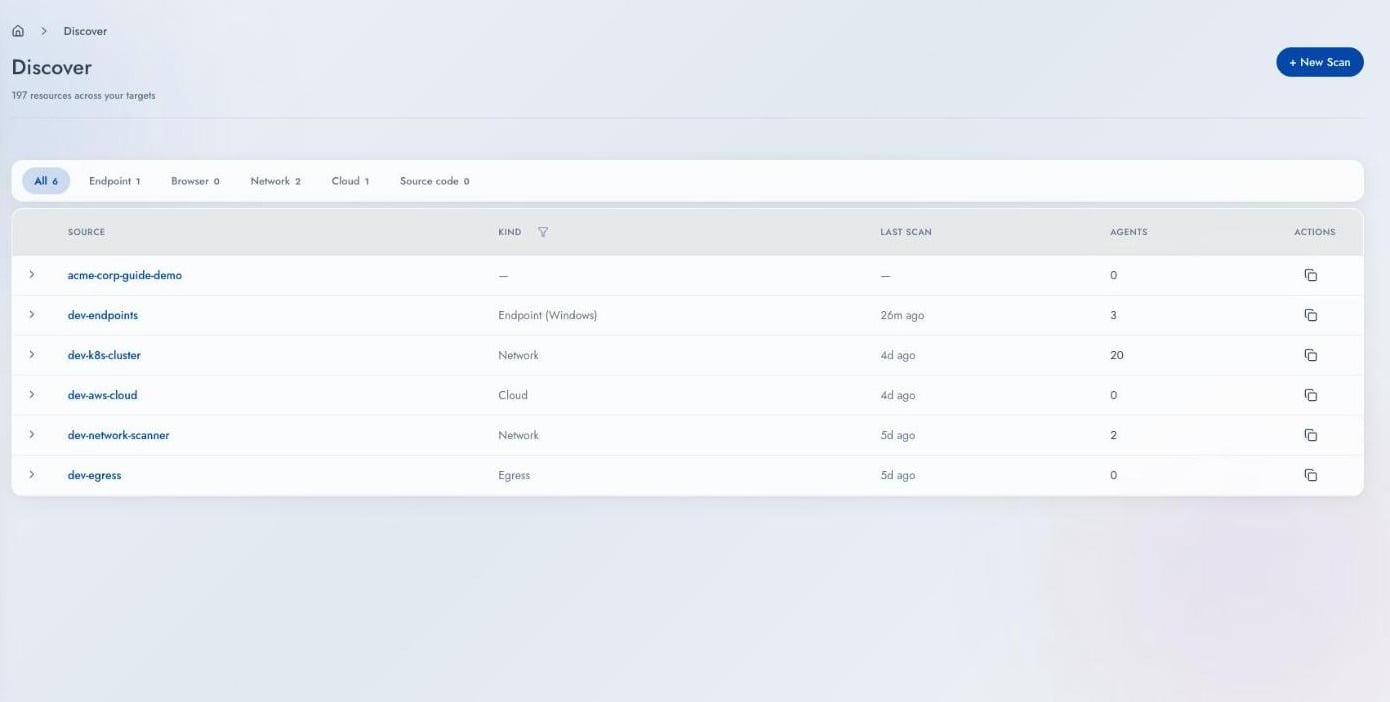
A chevron at the start of each row expands it to show that Target’s findings, grouped into
AI, Non-AI, and Uncertain.
Inside a Target
Click a Target to open it. The identifier sits under the title with a copy button, and the top right shows connection state and a Scan now button.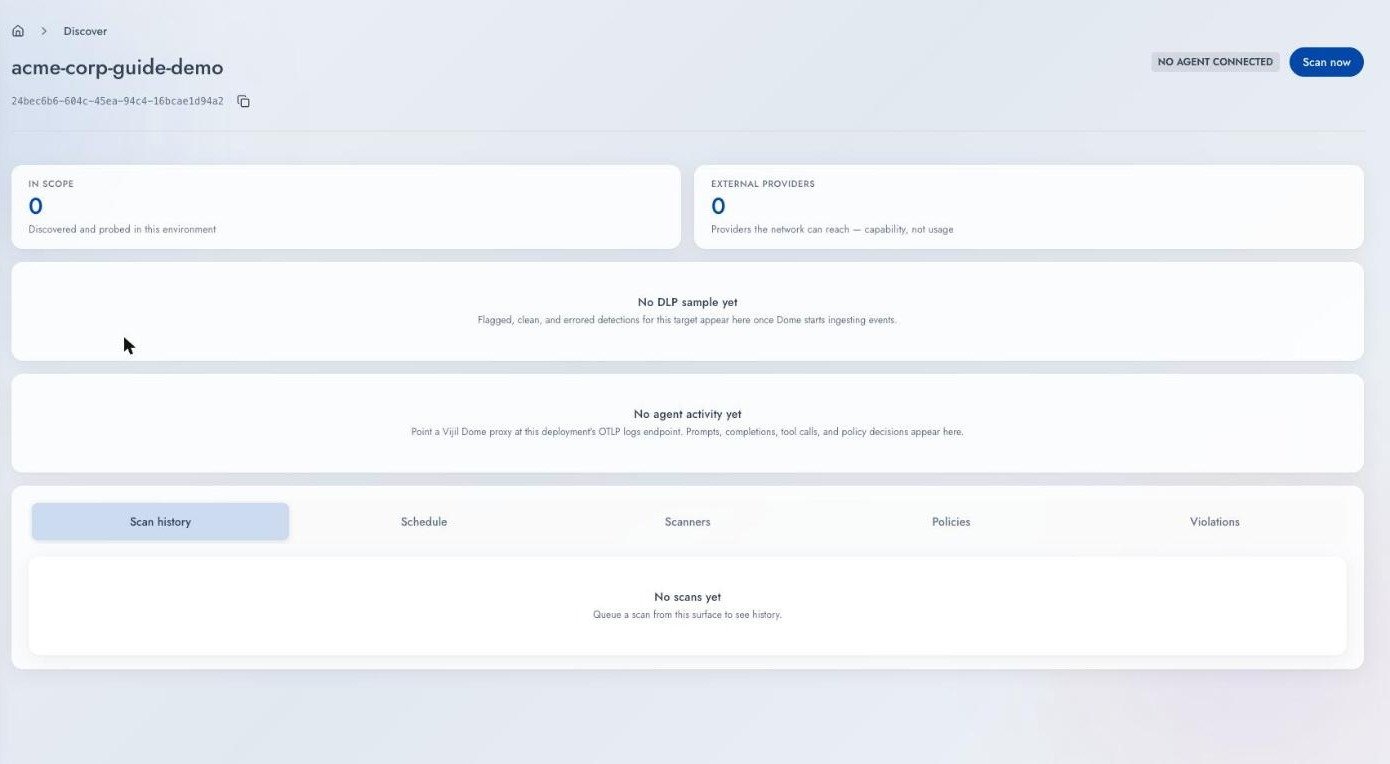
After the first scan, a line beneath the counters summarizes the most recent scan: when it
ran, which Collector kind reported it, and how many Collectors it covered.
Below that sit two panels, Usage insights and Agent activity. Both fill only from
Vijil Dome telemetry pointed at this Target, and both stay empty
on a Target that only runs scans.
Below them, five sub-tabs:
The header badge reads Agent online, Agent stale, No agent reporting, or No
agent connected.
Run a Scan
Press Scan now on the Target, or:Schedule Recurring Scans
Open the Schedule sub-tab, or use the command line:--body takes a JSON object inline, or @file to read one from a file.
Schedule a recurring scan for any Target you intend to keep.
Delete a Target
--yes in a script.
Next Steps
Install a Collector
Credentials and install steps for each kind.
Review Discovered Resources
Read what a scan returned.