

Before You Install
Vijil provides the Collector artifacts. Arrange them before you book an install window. Package names, services, and paths on this page use the namevijil-shadow.
Network Requirements
Collectors need outbound DNS and HTTPS to the control plane on port443. They only make
outbound connections, so you can leave your inbound firewall rules closed.
Tell your security operations team before the first network-scanner sweep. A scanner
sweeping a /16 reaches 65,536 addresses and will register on intrusion detection as a port
scan.
Values Every Collector Needs
Every Collector needs two values. Where to report. The control plane address. On Vijil’s hosted service it ishttps://discover.vijil.ai. On a self-hosted Console, read it with:
id returned when you created the Target. See
Create and Manage Targets.
Choose a Credential
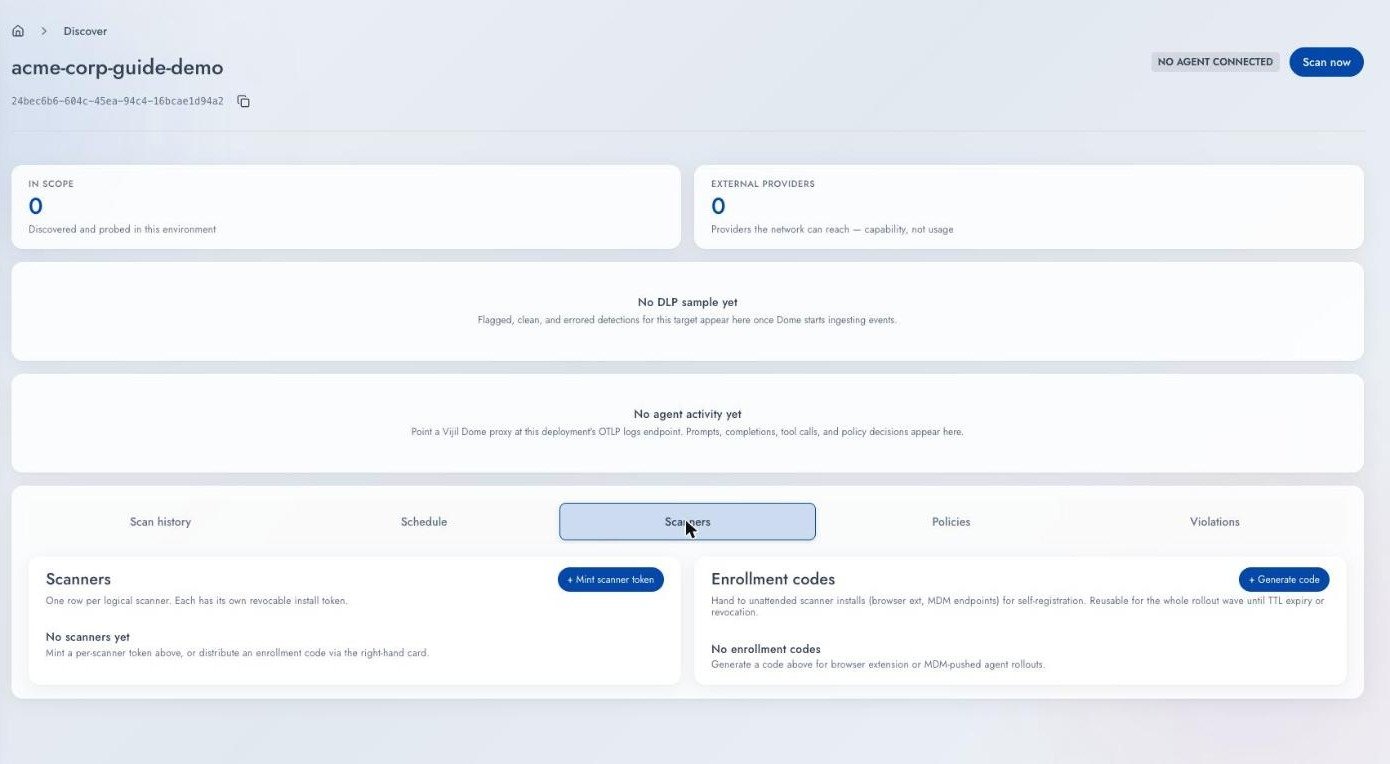
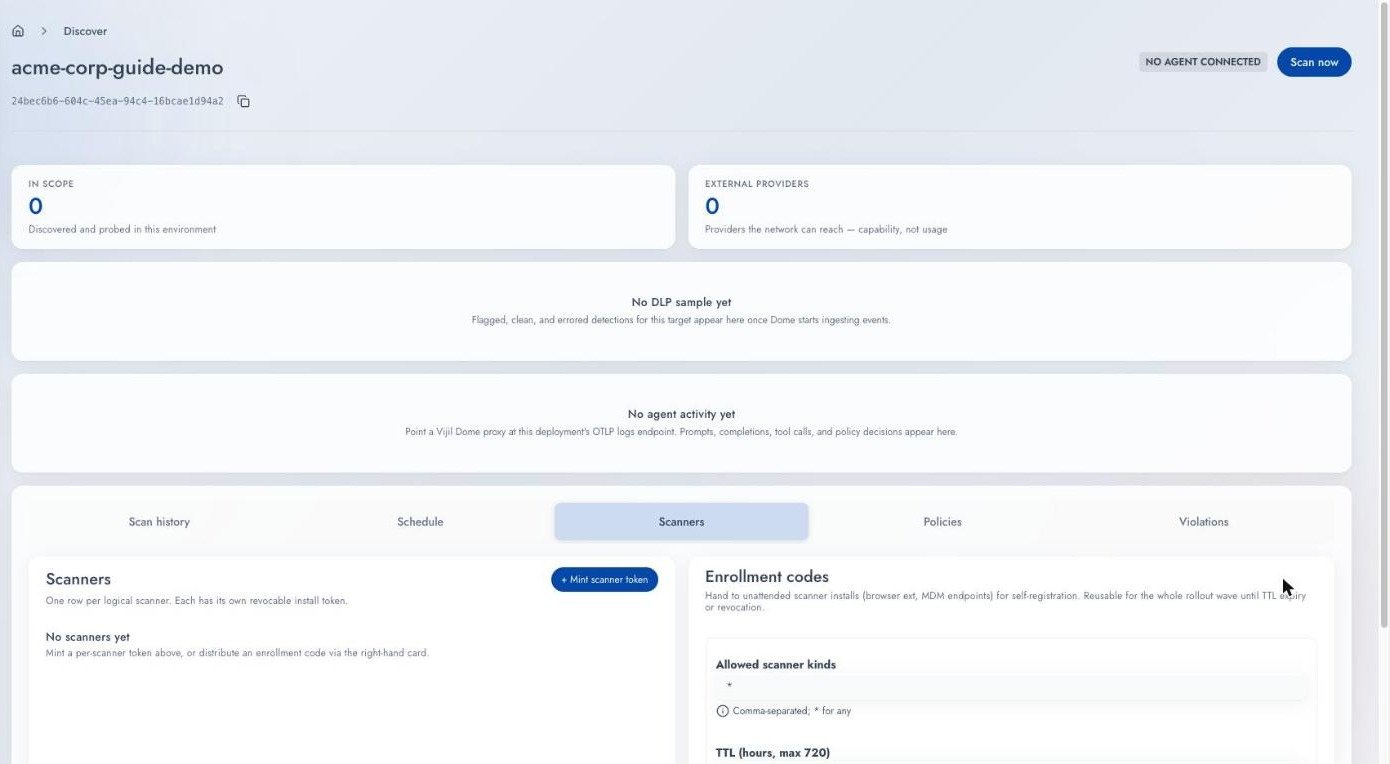
Both are also available in the Console, on the Scanners sub-tab of the Target.
For an endpoint rollout, allow only the platform you are deploying to:
endpoint_macos,
endpoint_linux, or endpoint_windows.
A code allowing * for 720 hours enrolls anything for 30 days. Scope both settings to the
rollout you are running.
Endpoint Collectors
The endpoint Collector runs as a service on the machine you want inventoried. It runs on macOS, Linux, and Windows. Use an enrollment code for a fleet, and push the package through your device management or configuration management tool. Every install needs administrator or root privileges.macOS
Write the enrollment code to/etc/vijil-shadow/enrollment-code before running the
installer:
/var/log/vijil-shadow/. Read endpoint.log first, then endpoint.err.log
if the first is empty.
Linux
Vijil supplies a.deb package for Debian and Ubuntu, and a .rpm package for Fedora and
RHEL. Vijil tests both on Ubuntu 22.04 and 24.04, and on RHEL 8 and 9.
Pass the control plane address and the enrollment code on the install command:
sudo line, as shown. sudo -E does not pass them through on
every distribution, and the install then warns VIJIL_SHADOW_CONTROL_PLANE_URL not set.
The package starts the vijil-shadow-endpoint service. Confirm it runs:
/var/log/vijil-shadow/endpoint.log.
Windows
Vijil supplies a ZIP archive with the Collector and two PowerShell scripts,install-service.ps1 and uninstall-service.ps1.
Run the install from an elevated PowerShell session:
VijilShadowEndpoint service, then waits for the
Collector to enroll. If enrollment fails, it exits with an error and prints the log lines
that explain why.
If the file is missing, read the service log:
.\uninstall-service.ps1.
Self-Signed Control Plane Certificates
If your control plane uses a self-signed certificate, trust it on the machine before you install. Otherwise the Collector logsCERTIFICATE_VERIFY_FAILED and cannot enroll.
Upgrades and Re-Enrollment
An upgrade needs no new enrollment code. On Linux, remove the old package and install the new one. On Windows, runinstall-service.ps1 from the new archive with only
-ControlPlaneUrl.
If you revoke a Collector or recreate its Target, give the machine a fresh enrollment code.
Write it to /etc/vijil-shadow/enrollment-code on macOS or Linux, or to
C:\ProgramData\vijil-shadow\config\enrollment-code on Windows. The Collector re-enrolls
within five minutes and appears as a new Collector, so revoke the old one.
Network Scanner Collectors
The network scanner runs as a container on a virtual machine inside the network. It finds services by reaching out to hosts it can route to. What you supply- A virtual machine inside the target network, with routes to the subnets you want swept
- Docker installed on it
- A language model API key for classification, unless you accept an
Uncertaingroup. See Classification.
ps on the host sees anything you pass with -e.
--network=host and --cap-add=NET_RAW are both required. Without them, the sweep exits
with a permission error.
In-Cluster Collectors
The in-cluster Collector reads your cluster’s services through the Kubernetes API, so you can skip provisioning a virtual machine. What you supply- A Kubernetes cluster, 1.27 or later, with
kubectlconfigured against it - Helm 3.8 or later
- A language model API key for classification
--set existingSecret.name=<secret-name> instead of --set llmApiKey. The chart reads the
key LLM_API_KEY from that Secret unless you override existingSecret.key.
Cloud API Collectors
The cloud API Collector lists managed AI in your AWS account: Bedrock models and agents, SageMaker endpoints, AgentCore runtimes and gateways, and the Guardrails attached to them. What you supply- An Amazon EKS cluster with an OIDC provider configured
kubectland Helm 3.8 or later against that cluster- An IAM role holding read-only list permissions for the services you want listed, with a trust policy admitting your cluster’s OIDC issuer
Browser Extension Collectors
The browser extension reports the AI assistants people use in the browser, per tab. Use an enrollment code and push the extension through browser policy, the same way you would any other managed extension.One-Shot Collectors
These Collectors run once against a specific source and exit. They take the same credentials and report into the same Target.
A scanner reports what exists. These Collectors report what people actually use.
Verify a Collector Connected
Open the Target in the Console. The Collector appears on the Scanners sub-tab once it checks in, and the header badge shows one of four states:
Agent stale and No agent reporting appear only on this badge. Check it when a
Collector stops working.
From the command line:
Troubleshooting
The Collector never appears on the Scanners sub-tab. Work down this list:- Confirm the service is running, and read its log. On macOS and Linux, read
endpoint.logunder/var/log/vijil-shadow/first, thenendpoint.err.logif the first is empty. On Windows, readC:\ProgramData\vijil-shadow\service-stderr.log. - On a macOS or Linux endpoint Collector, confirm
/etc/vijil-shadow/enrollment-codeexists and holds the code. On Windows, confirmC:\ProgramData\vijil-shadow\identity.jsonexists. - Confirm the host can reach the control plane outbound on port
443. - Confirm the control plane address matches the one
vijil discover setup-inforeturns. - Confirm the credential is still valid and belongs to this Target.
daemon subcommand, or no Collector has checked in for 24 hours. In the second
case the Console says “No agent has checked in during the last 24 hours, so nothing was
queued.”
Revoke Credentials
Revoking takes effect immediately. Revoking a scanner also removes its findings from the current view at once, without waiting for the 30-day silence window. Its past reports stay in scan history.Next Steps
Review Discovered Resources
Read what the scan returned.
Register a Discovered Agent
Move a finding into the Agent Registry.