

Prerequisites
- You have a DigitalOcean account with access to the GenAI platform.
- You have created at least one agent or deployment on DigitalOcean GenAI.
- You have access to a Vijil team and permission to manage Keys and Agents.
Store Credentials
Once you have an agent set up, follow the instructions here to fetch the credentialsdata-agent-id and data-chatbot-id to access that agent through an API, as well as the agent endpoint.
Now log into Vijil Evaluate, and navigate to Keys > Add new key. From the Model Hub dropdown, select DigitalOcean as your chosen hub, and add the above information in the respective fields.
Give the API key configuration a name, save it, and you are ready to go!
To add the credentials using the python client, you need to supply the fields inside the hub_config argument.
Run an Evaluation
To run an evaluation from the UI, simply select DigitalOcean as the Model Hub, then paste the agent endpoint as the Model URL. To run an evaluation using the Python client, use the following code pattern, with the agent API asmodel_url and a Harness of your choice.
Register an Agent on Vijil
Once your DigitalOcean GenAI agent credentials are stored as an API key, you can register an agent that uses this hub from the Vijil UI: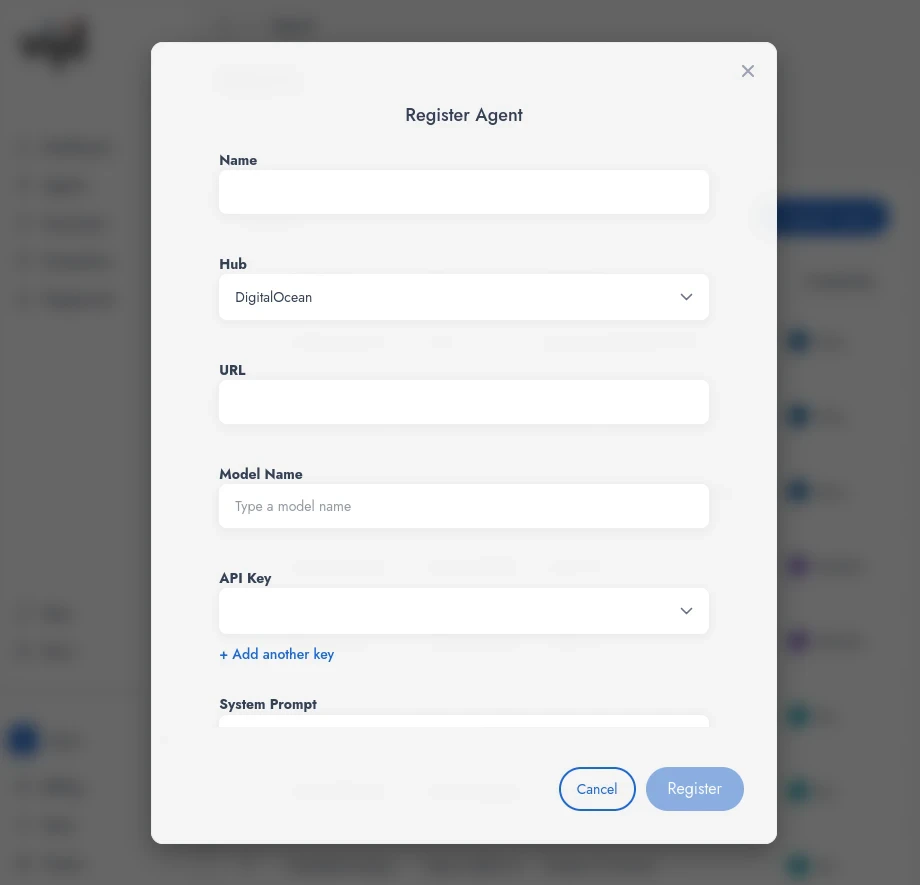
- Press Register Agent.
- Enter an Agent name.
- Select DigitalOcean as the Hub.
- Enter a DigitalOcean GenAI agent deployment endpoint URL.
- Enter a model name (for example the name configured for your DigitalOcean agent). See your DigitalOcean GenAI configuration for the list of available agents or models.
- Select an existing DigitalOcean API key you configured earlier, or create a new one.
- Add a System Prompt if you want Vijil to send a default system prompt with every request to this agent.
Enterprise
If your organization uses enterprise-only features with Vijil:- Add an MCP server URL so the agent can access MCP tools exposed by that server.
- Add an A2A Agent Card URL so this agent can participate in agent-to-agent workflows defined in your enterprise.