> ## Documentation Index
> Fetch the complete documentation index at: https://docs.vijil.ai/llms.txt
> Use this file to discover all available pages before exploring further.
# Create and Manage Targets
> Create a Target, read the Targets tab, and schedule scans.
A [Target](/concepts/discovery/target) is a place you want looked at, and the unit findings
group under.
## Create a Target
The Console cannot create Targets yet. Use the `vijil` command line tool:
```bash theme={null}
vijil discover deployment-create --name "laptops" --type scanner --json
```
The Console calls this object a **Target**. The command line still calls it a
**deployment**, so every command that acts on a Target uses the `deployment-*` name. They
are the same object.
| Flag | Description |
| - | - |
| `--name` | Display name for the Target |
| `--type` | `scanner` for anything that scans, `dlp` for a Target fed by Dome telemetry |
| `--json` | Output as JSON |
The response contains a live credential, an `install_token` in plaintext. Never pipe this
command to a file or into a continuous integration log. Copy the `id` and let the rest
scroll away.
The `id` in the response is the Target identifier. Every command that acts on this Target
needs it.
## The Targets Tab
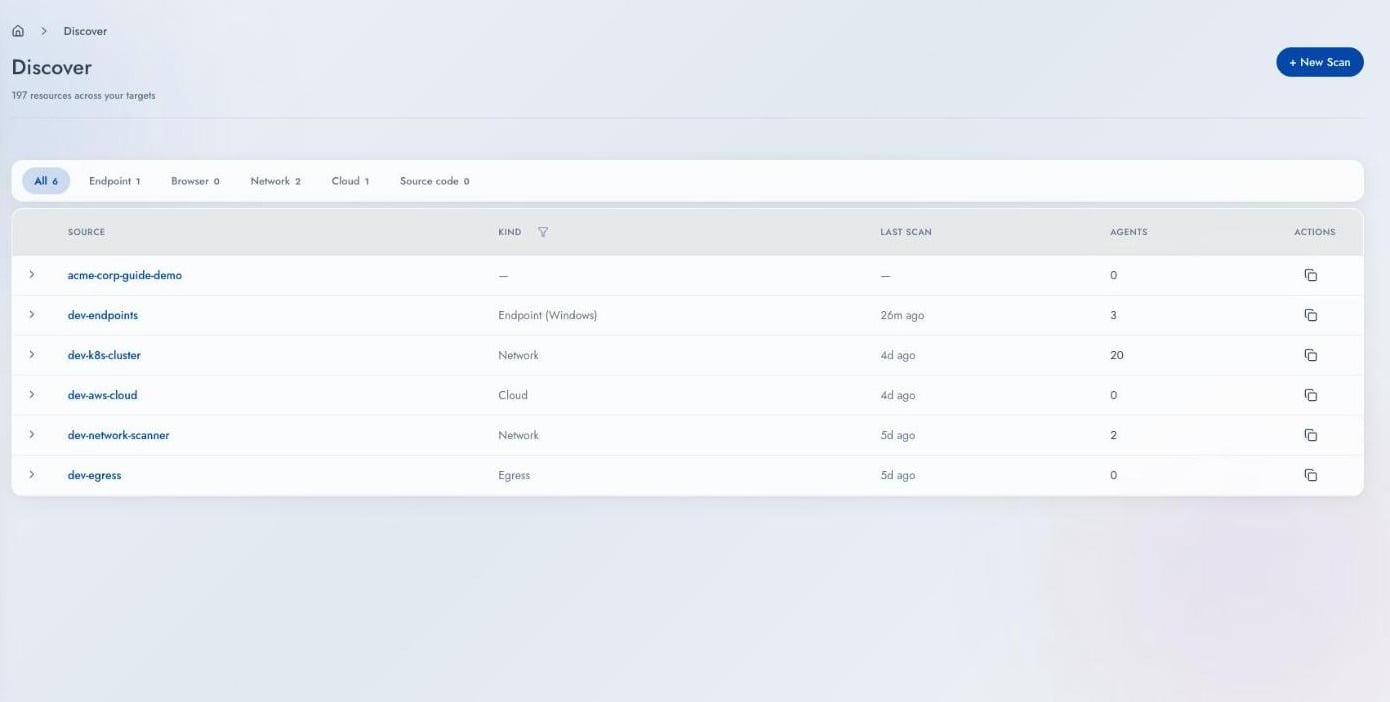
Open **Discover** in the sidebar and choose the **Targets** tab. Filter chips across the top
count Targets by kind: **All**, Endpoint, Browser, Network, Cloud, and Source code. A
Kubernetes cluster counts under **Network**, because the in-cluster Collector and the
network scanner report as the same scanner kind.
 | Column | What it shows |
| - | - |
| **Source** | The Target name you gave it |
| **Kind** | What kind of Collector reports into it. A dash means none has reported yet. |
| **Last scan** | How long ago the most recent scan ran |
| **Agents** | How many Collectors report into this Target |
| **Actions** | Copy the Target identifier |
A chevron at the start of each row expands it to show that Target's findings, grouped into
`AI`, `Non-AI`, and `Uncertain`.
The **Agents** column counts **Collectors**. A Target showing three agents has three
scanners installed against it. This column is separate from the
[Agent Registry](/owner-guide/register-agents/registering-agents).
## Inside a Target
Click a Target to open it. The identifier sits under the title with a copy button, and the
top right shows connection state and a **Scan now** button.
| Column | What it shows |
| - | - |
| **Source** | The Target name you gave it |
| **Kind** | What kind of Collector reports into it. A dash means none has reported yet. |
| **Last scan** | How long ago the most recent scan ran |
| **Agents** | How many Collectors report into this Target |
| **Actions** | Copy the Target identifier |
A chevron at the start of each row expands it to show that Target's findings, grouped into
`AI`, `Non-AI`, and `Uncertain`.
The **Agents** column counts **Collectors**. A Target showing three agents has three
scanners installed against it. This column is separate from the
[Agent Registry](/owner-guide/register-agents/registering-agents).
## Inside a Target
Click a Target to open it. The identifier sits under the title with a copy button, and the
top right shows connection state and a **Scan now** button.
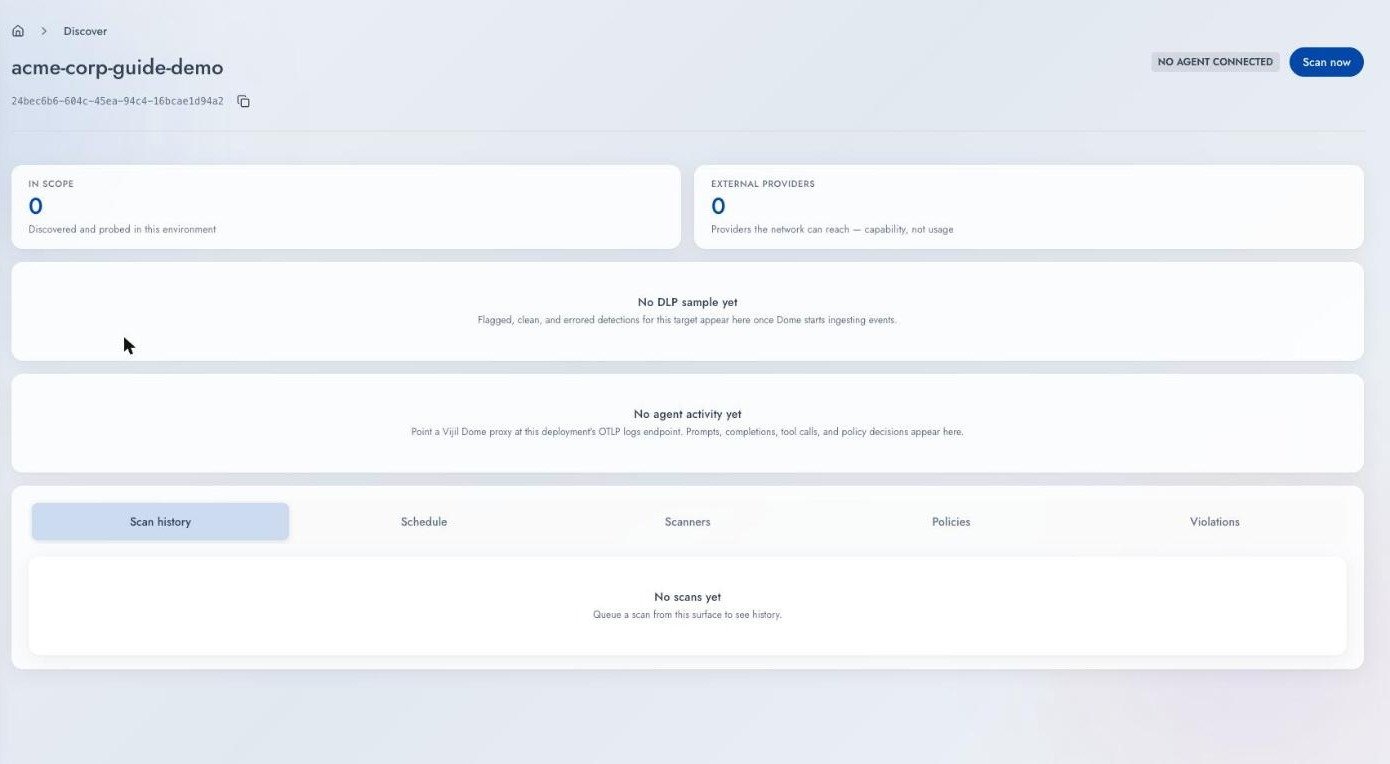 Two counters sit across the top:
| Counter | Meaning |
| - | - |
| **In scope** | Discovered and probed in this environment |
| **External providers** | Providers the network can reach. A provider appears here even when nobody uses it. |
After the first scan, a line beneath the counters summarizes the most recent scan: when it
ran, which Collector kind reported it, and how many Collectors it covered.
Below that sit two panels, **Usage insights** and **Agent activity**. Both fill only from
Vijil [Dome](/concepts/platform/dome) telemetry pointed at this Target, and both stay empty
on a Target that only runs scans.
The word "Agent" carries two meanings on this screen. In the **Agent activity** panel it
means an AI Agent. In the **Agents** column and the connection badge it means a Collector.
Below them, five sub-tabs:
| Sub-tab | What it holds |
| - | - |
| **Scan history** | Every scan run against this Target and what each returned |
| **Schedule** | Recurring scan configuration |
| **Scanners** | Scanner tokens and enrollment codes for this Target |
| **Policies** | Rules that say what this scope allows |
| **Violations** | Findings that breached those rules |
The header badge reads **Agent online**, **Agent stale**, **No agent reporting**, or **No
agent connected**.
## Run a Scan
Press **Scan now** on the Target, or:
```bash theme={null}
vijil discover scan-now
```
You can also press **+ New Scan** on **Discover** and stay on the **Scan surfaces** tab.
The modal calls Targets "scan surfaces". Pick one and press **Scan**.
Collectors poll every 30 seconds by default, so expect a short delay before the scan starts.
**Scan now** reaches only Collectors that checked in within the last 24 hours. If none
have, the Console tells you that it queued nothing. If the Target has no Collector
connected, the Console asks you to confirm first.
## Schedule Recurring Scans
Open the **Schedule** sub-tab, or use the command line:
```bash theme={null}
vijil discover config-get
vijil discover config-set --body @schedule.json
```
`--body` takes a JSON object inline, or `@file` to read one from a file.
Schedule a recurring scan for any Target you intend to keep.
## Delete a Target
```bash theme={null}
vijil discover deployment-delete
```
Deleting a Target removes its scan history, Collectors, credentials, policies, and
violations. You can skip revoking the credentials first. Any Collector still installed on a
machine loses its ability to report, so uninstall those separately.
The command asks for confirmation. Pass `--yes` in a script.
## Next Steps
Credentials and install steps for each kind.
Read what a scan returned.
This documentation is built and hosted on [Mintlify](https://mintlify.com), a developer documentation platform.
Two counters sit across the top:
| Counter | Meaning |
| - | - |
| **In scope** | Discovered and probed in this environment |
| **External providers** | Providers the network can reach. A provider appears here even when nobody uses it. |
After the first scan, a line beneath the counters summarizes the most recent scan: when it
ran, which Collector kind reported it, and how many Collectors it covered.
Below that sit two panels, **Usage insights** and **Agent activity**. Both fill only from
Vijil [Dome](/concepts/platform/dome) telemetry pointed at this Target, and both stay empty
on a Target that only runs scans.
The word "Agent" carries two meanings on this screen. In the **Agent activity** panel it
means an AI Agent. In the **Agents** column and the connection badge it means a Collector.
Below them, five sub-tabs:
| Sub-tab | What it holds |
| - | - |
| **Scan history** | Every scan run against this Target and what each returned |
| **Schedule** | Recurring scan configuration |
| **Scanners** | Scanner tokens and enrollment codes for this Target |
| **Policies** | Rules that say what this scope allows |
| **Violations** | Findings that breached those rules |
The header badge reads **Agent online**, **Agent stale**, **No agent reporting**, or **No
agent connected**.
## Run a Scan
Press **Scan now** on the Target, or:
```bash theme={null}
vijil discover scan-now
```
You can also press **+ New Scan** on **Discover** and stay on the **Scan surfaces** tab.
The modal calls Targets "scan surfaces". Pick one and press **Scan**.
Collectors poll every 30 seconds by default, so expect a short delay before the scan starts.
**Scan now** reaches only Collectors that checked in within the last 24 hours. If none
have, the Console tells you that it queued nothing. If the Target has no Collector
connected, the Console asks you to confirm first.
## Schedule Recurring Scans
Open the **Schedule** sub-tab, or use the command line:
```bash theme={null}
vijil discover config-get
vijil discover config-set --body @schedule.json
```
`--body` takes a JSON object inline, or `@file` to read one from a file.
Schedule a recurring scan for any Target you intend to keep.
## Delete a Target
```bash theme={null}
vijil discover deployment-delete
```
Deleting a Target removes its scan history, Collectors, credentials, policies, and
violations. You can skip revoking the credentials first. Any Collector still installed on a
machine loses its ability to report, so uninstall those separately.
The command asks for confirmation. Pass `--yes` in a script.
## Next Steps
Credentials and install steps for each kind.
Read what a scan returned.
This documentation is built and hosted on [Mintlify](https://mintlify.com), a developer documentation platform.