> ## Documentation Index
> Fetch the complete documentation index at: https://docs.vijil.ai/llms.txt
> Use this file to discover all available pages before exploring further.
# Get Started with Discover
> Create a Target, install a Collector, run your first scan, and register what you find.
Every other workflow in the Console starts from an Agent you already registered. [Discover](/concepts/platform/discover) is the step before that: it finds the AI running in your estate.
By the end of this page you will have one [Target](/concepts/discovery/target), one [Collector](/concepts/discovery/collector) reporting into it, and a first inventory to read.
This page uses the `vijil` command line tool for the first two steps. The Console cannot create Targets yet, so this workflow starts in a terminal. Everything after step 2 happens in the Console.
## What You Need
* A Vijil Console account, and membership of the team the estate belongs to.
* Collector artifacts from Vijil. They carry the engineering name `vijil-shadow`, which is why that name appears in package filenames, environment variables, and log paths.
* The Vijil command line tool, from `pip install vijil-console`. See the [CLI Quickstart](/developer-guide/cli/quickstart).
* One machine, network, or cluster you want scanned, and the access to install software on it.
## Decide Your Targets First
A Target is a place you want looked at. A Collector is the software that does the looking.
Many Collectors can report into one Target, so a fleet of laptops is one Target with one
Collector per laptop.
Decide your Targets before you install anything. Use one per source: one for endpoints, one
per network, one per cluster, one per cloud account.
## Working With Discover
```bash theme={null}
vijil auth init --url https://console-api.vijil.ai
vijil auth login --email you@example.com
```
On a self-hosted Console, use your own API address instead.
Leave `--password` off and the tool prompts for it. A password on the command line lands in your shell history.
Then select the team the estate belongs to:
```bash theme={null}
vijil team list
vijil team use
```
```bash theme={null}
vijil discover deployment-create --name "laptops" --type scanner --json
```
Use `--type scanner` for anything that goes looking for services. Use `--type dlp` only for a Target that receives events from a Vijil [Dome](/concepts/platform/dome) proxy.
The response contains a live credential, an `install_token` in plaintext. Never pipe this command to a file or into a continuous integration log. Copy the `id`. It is the Target identifier you use everywhere below.
More detail on [Create and Manage Targets](/owner-guide/discover/targets).
Open **Discover** and choose the **Targets** tab. Your new Target appears in the list with no kind, no scan, and no agents.
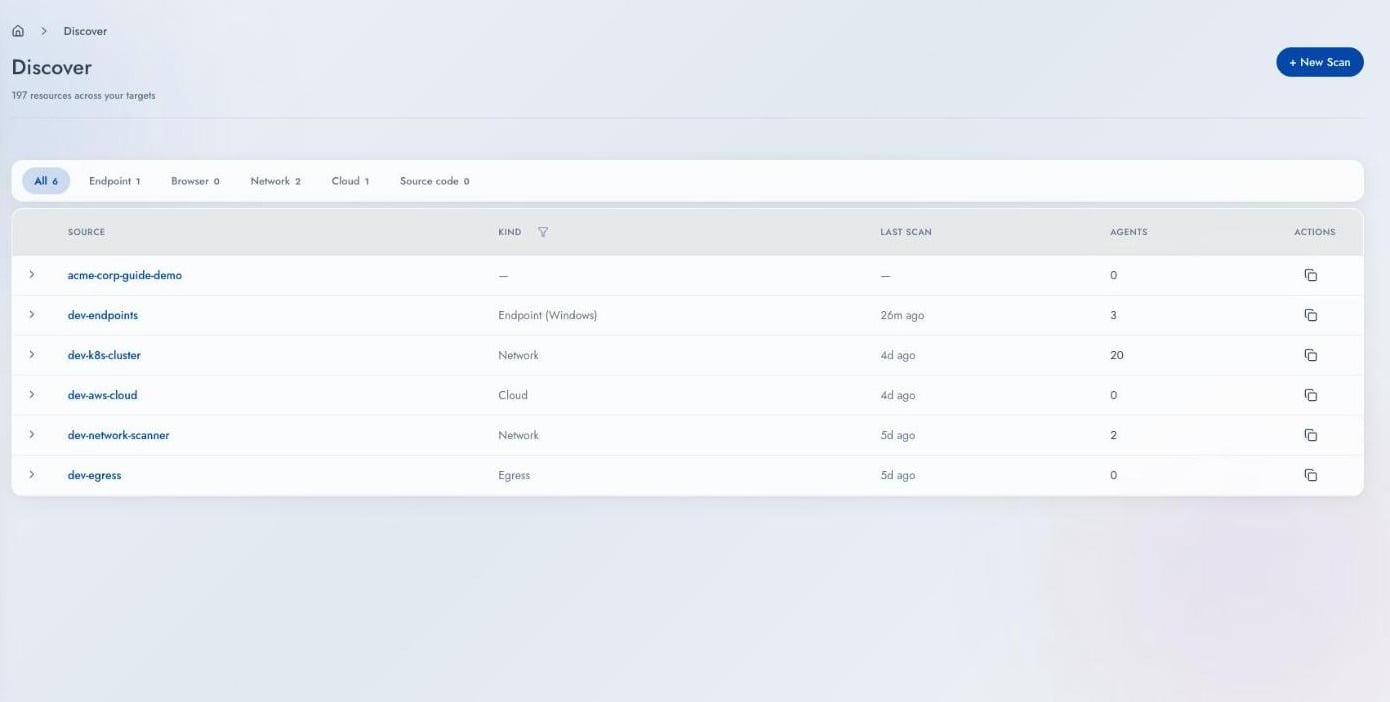 Click it to open the Target.
**On these screens, "Agent" means Collector.** The **Agents** count and the connection badge both refer to the scanning software installed against this Target. The Agent Registry uses the same word for an AI [Agent](/owner-guide/register-agents/what-is-an-agent), which is a different thing.
Click it to open the Target.
**On these screens, "Agent" means Collector.** The **Agents** count and the connection badge both refer to the scanning software installed against this Target. The Agent Registry uses the same word for an AI [Agent](/owner-guide/register-agents/what-is-an-agent), which is a different thing.
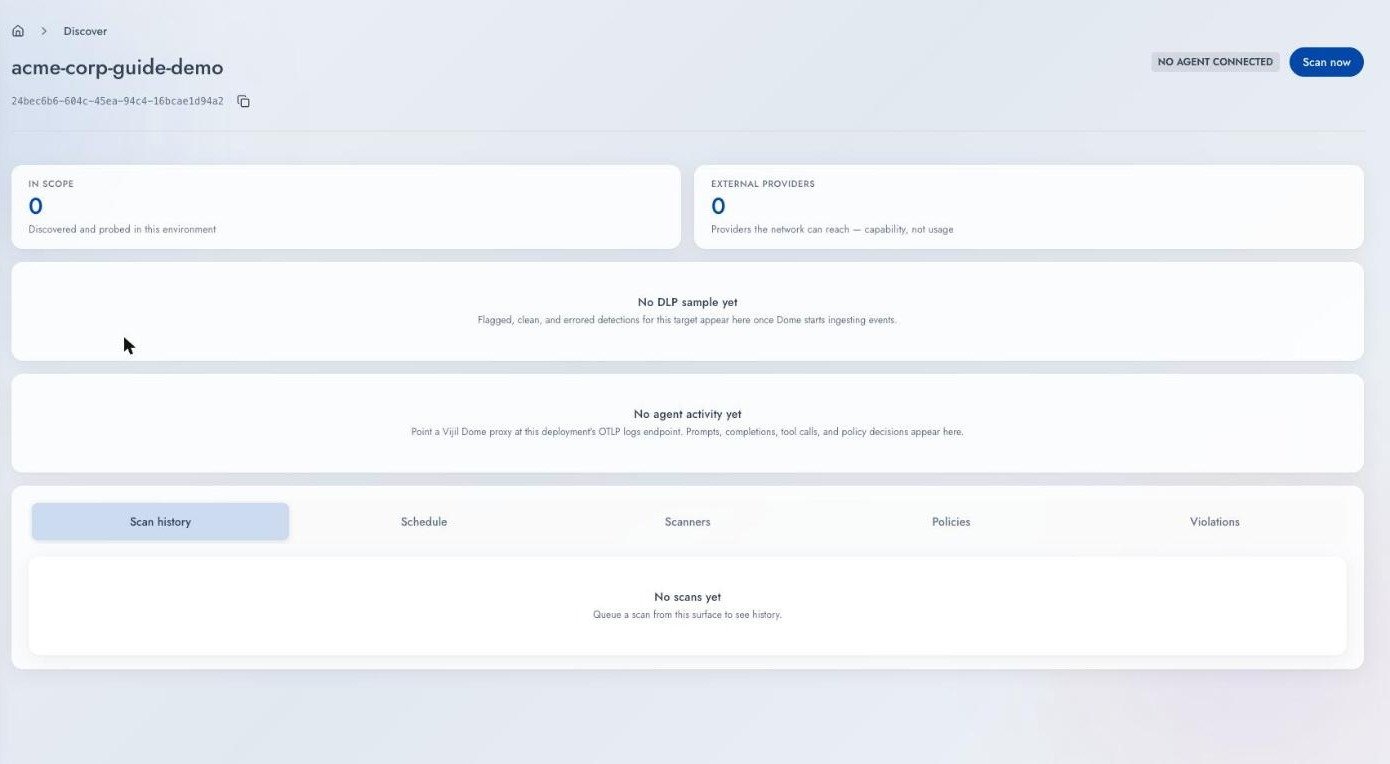 The badge beside the title reads **No agent connected**. **Scan now** starts working once a Collector checks in.
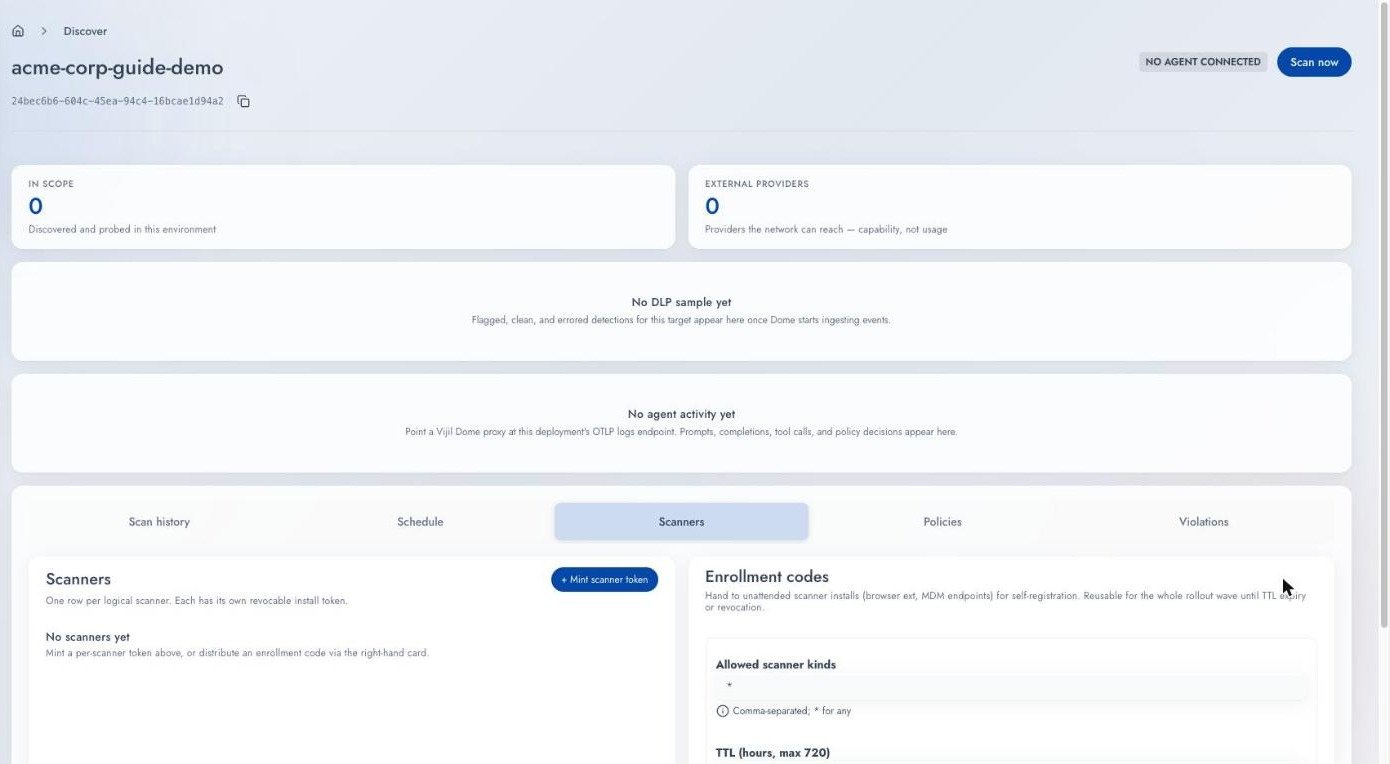
Open the **Scanners** sub-tab. There are two kinds of credential.
| Credential | Use when |
| - | - |
| **Scanner token** | You install by hand: a Helm release, a virtual machine, a cloud connector. One token per Collector, revocable on its own. |
| **Enrollment code** | The install is unattended: laptops through device management, an extension pushed by policy. One code serves the whole rollout wave, and each machine registers as its own Collector. |
Choose an enrollment code for a fleet.
The badge beside the title reads **No agent connected**. **Scan now** starts working once a Collector checks in.
Open the **Scanners** sub-tab. There are two kinds of credential.
| Credential | Use when |
| - | - |
| **Scanner token** | You install by hand: a Helm release, a virtual machine, a cloud connector. One token per Collector, revocable on its own. |
| **Enrollment code** | The install is unattended: laptops through device management, an extension pushed by policy. One code serves the whole rollout wave, and each machine registers as its own Collector. |
Choose an enrollment code for a fleet.
 More detail on [Install a Collector](/owner-guide/discover/collectors).
Pick the kind that matches what you want to reach.
| Kind | Install it on |
| - | - |
| **Endpoint** | The machine itself |
| **Network scanner** | A virtual machine inside the network |
| **In-cluster** | A Kubernetes cluster you already run |
| **Cloud API** | An Amazon EKS cluster, to reach managed AI |
The Target header changes to **Agent online** once the Collector checks in.
Prerequisites and install steps for each kind: [Install a Collector](/owner-guide/discover/collectors).
Either press **Scan now** on the Target, or:
```bash theme={null}
vijil discover scan-now
```
Collectors poll every 30 seconds by default, so expect a short delay before the scan starts. Progress appears on the Target as it runs.
The **Findings** tab lists everything found across every Target, with a **Classification** column showing `AI` or `Non-AI`, and a dash where the Collector could not decide. Expand your Target's row on the **Targets** tab to see the same results split into `AI`, `Non-AI`, and `Uncertain`. Open any Resource for its evidence.
Then check what the scan could **not** reach. An empty finding list has two possible meanings: the scope is clean, or the Collector saw nothing.
How to work through the list: [Review Discovered Resources](/owner-guide/discover/reviewing-resources).
Register a discovered Agent from the **Findings** tab, then supply the endpoint and credentials Vijil needs to reach it. Every [Diamond](/concepts/platform/diamond) and [Dome](/concepts/platform/dome) workflow then applies to it.
What is eligible and why: [Register a Discovered Agent](/owner-guide/discover/registering-agents).
## Housekeeping
* **Revoke credentials you no longer need.** Revoke both from the Scanners sub-tab. Revoking takes effect immediately.
* **Keep one Target per source.** Mixing sources makes findings harder to attribute.
* **Re-check blind spots after any access change.** A Collector that loses a permission still reports success, and its coverage shrinks.
## Next Steps
Target types, credentials, and scheduling.
Prerequisites and steps for each kind.
Work through `AI`, `Non-AI`, and `Uncertain`.
Move a finding into the Agent Registry.
This documentation is built and hosted on [Mintlify](https://mintlify.com), a developer documentation platform.
More detail on [Install a Collector](/owner-guide/discover/collectors).
Pick the kind that matches what you want to reach.
| Kind | Install it on |
| - | - |
| **Endpoint** | The machine itself |
| **Network scanner** | A virtual machine inside the network |
| **In-cluster** | A Kubernetes cluster you already run |
| **Cloud API** | An Amazon EKS cluster, to reach managed AI |
The Target header changes to **Agent online** once the Collector checks in.
Prerequisites and install steps for each kind: [Install a Collector](/owner-guide/discover/collectors).
Either press **Scan now** on the Target, or:
```bash theme={null}
vijil discover scan-now
```
Collectors poll every 30 seconds by default, so expect a short delay before the scan starts. Progress appears on the Target as it runs.
The **Findings** tab lists everything found across every Target, with a **Classification** column showing `AI` or `Non-AI`, and a dash where the Collector could not decide. Expand your Target's row on the **Targets** tab to see the same results split into `AI`, `Non-AI`, and `Uncertain`. Open any Resource for its evidence.
Then check what the scan could **not** reach. An empty finding list has two possible meanings: the scope is clean, or the Collector saw nothing.
How to work through the list: [Review Discovered Resources](/owner-guide/discover/reviewing-resources).
Register a discovered Agent from the **Findings** tab, then supply the endpoint and credentials Vijil needs to reach it. Every [Diamond](/concepts/platform/diamond) and [Dome](/concepts/platform/dome) workflow then applies to it.
What is eligible and why: [Register a Discovered Agent](/owner-guide/discover/registering-agents).
## Housekeeping
* **Revoke credentials you no longer need.** Revoke both from the Scanners sub-tab. Revoking takes effect immediately.
* **Keep one Target per source.** Mixing sources makes findings harder to attribute.
* **Re-check blind spots after any access change.** A Collector that loses a permission still reports success, and its coverage shrinks.
## Next Steps
Target types, credentials, and scheduling.
Prerequisites and steps for each kind.
Work through `AI`, `Non-AI`, and `Uncertain`.
Move a finding into the Agent Registry.
This documentation is built and hosted on [Mintlify](https://mintlify.com), a developer documentation platform.