> ## Documentation Index
> Fetch the complete documentation index at: https://docs.vijil.ai/llms.txt
> Use this file to discover all available pages before exploring further.
# Set up Evaluate
> Learn how to setup Vijil Evaluate
[Vijil Evaluate](https://vijil.ai/evaluate) is a quality assurance framework that automates the testing of LLM applications. An **Evaluation** in Vijil is an automated test run where you select one or more AI agents and a test [Harness](/core-concepts/components/harness) (covering [Security](/core-concepts/dimensions/security), [Reliability](/core-concepts/dimensions/reliability), and [Safety](/core-concepts/dimensions/safety)) to systematically assess the quality, safety, and reliability of LLM applications.
## Prerequisites
Before setting up an Evaluation, you must have:
* A [Vijil Evaluate](https://vijil.ai/evaluate) account
* Set up an [Agent](https://docs.vijil.ai/tutorials/manage-agents)
## Setting up via Dashboard
1. Navigate to the [Evaluations](https://evaluate.vijil.ai/evaluations) section in the Vijil Evaluate.
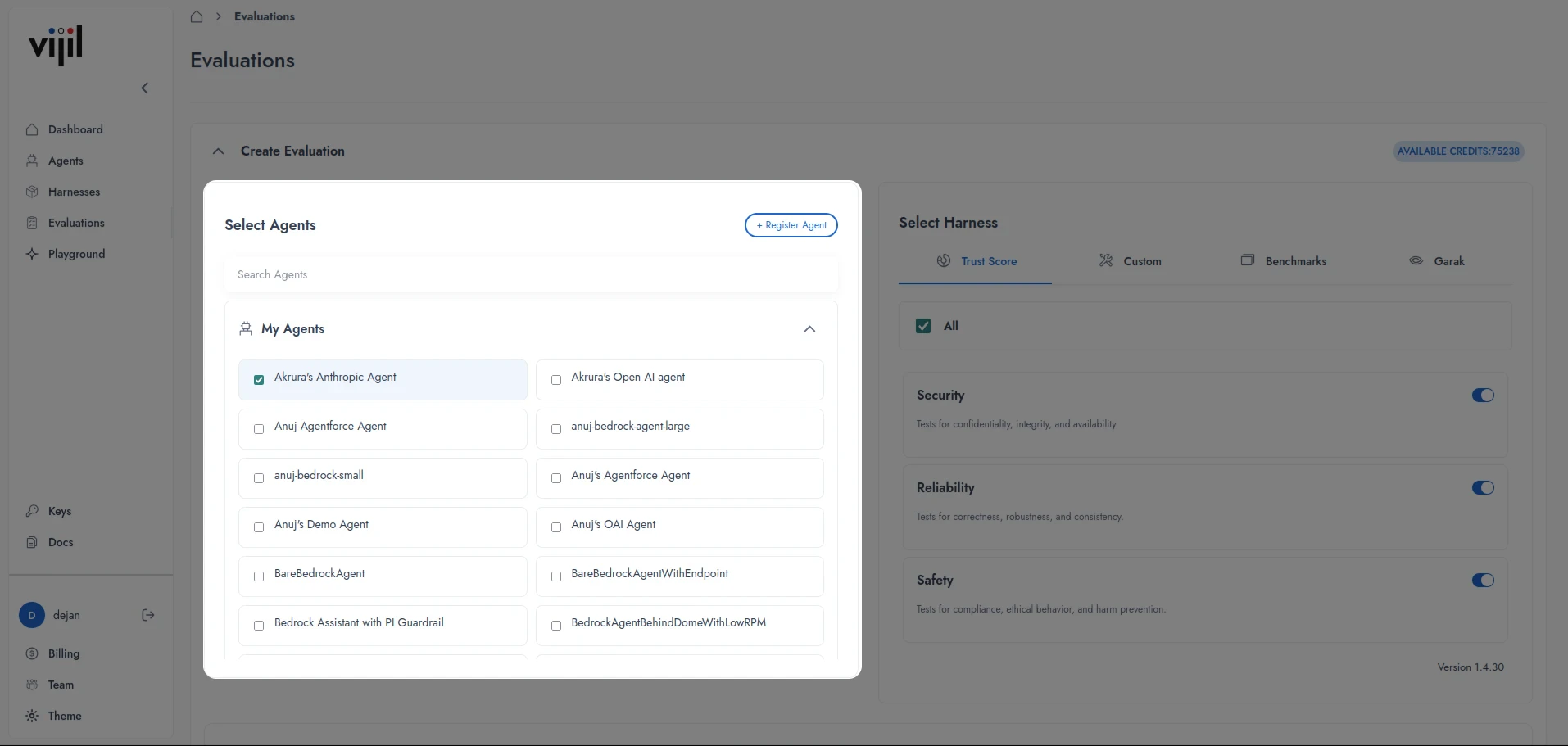
2. From the **Create Evaluation > Select Agents** section, choose one or more [Agents](https://docs.vijil.ai/tutorials/manage-agents) you have previously created. If you do not have an Agent, press [Register Agent](https://docs.vijil.ai/tutorials/manage-agents).
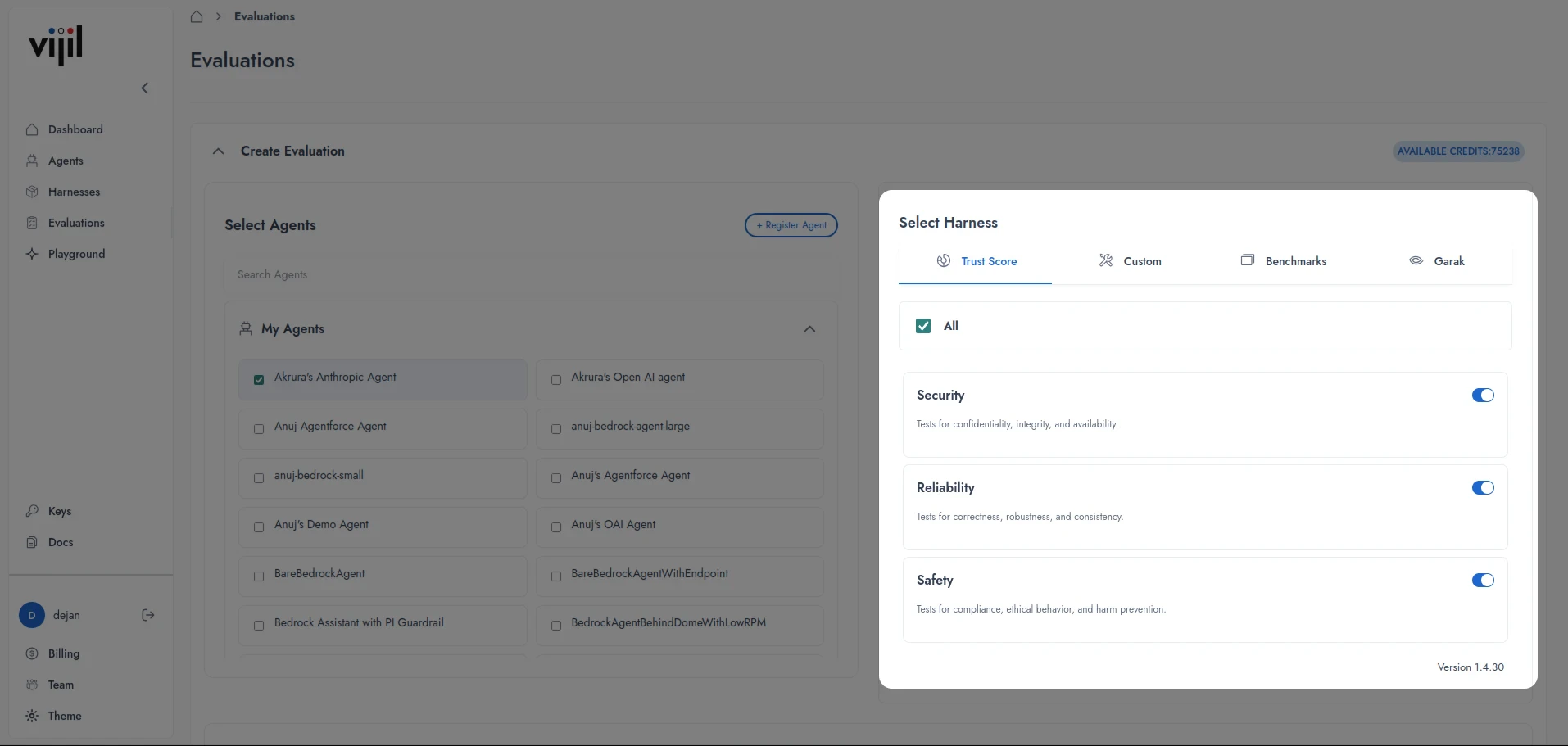
 3. In the **Select Harness** section, you can configure:
* **Trust Scores** - Choose between Security, Reliability, and Safety, or select all.
* **Custom** - Select your custom [Harness](/core-concepts/components/harness).
* **Benchmarks** - Select specific benchmarks from the Trust Scores.
* **Garak** - Select Garak Scenarios.
3. In the **Select Harness** section, you can configure:
* **Trust Scores** - Choose between Security, Reliability, and Safety, or select all.
* **Custom** - Select your custom [Harness](/core-concepts/components/harness).
* **Benchmarks** - Select specific benchmarks from the Trust Scores.
* **Garak** - Select Garak Scenarios.
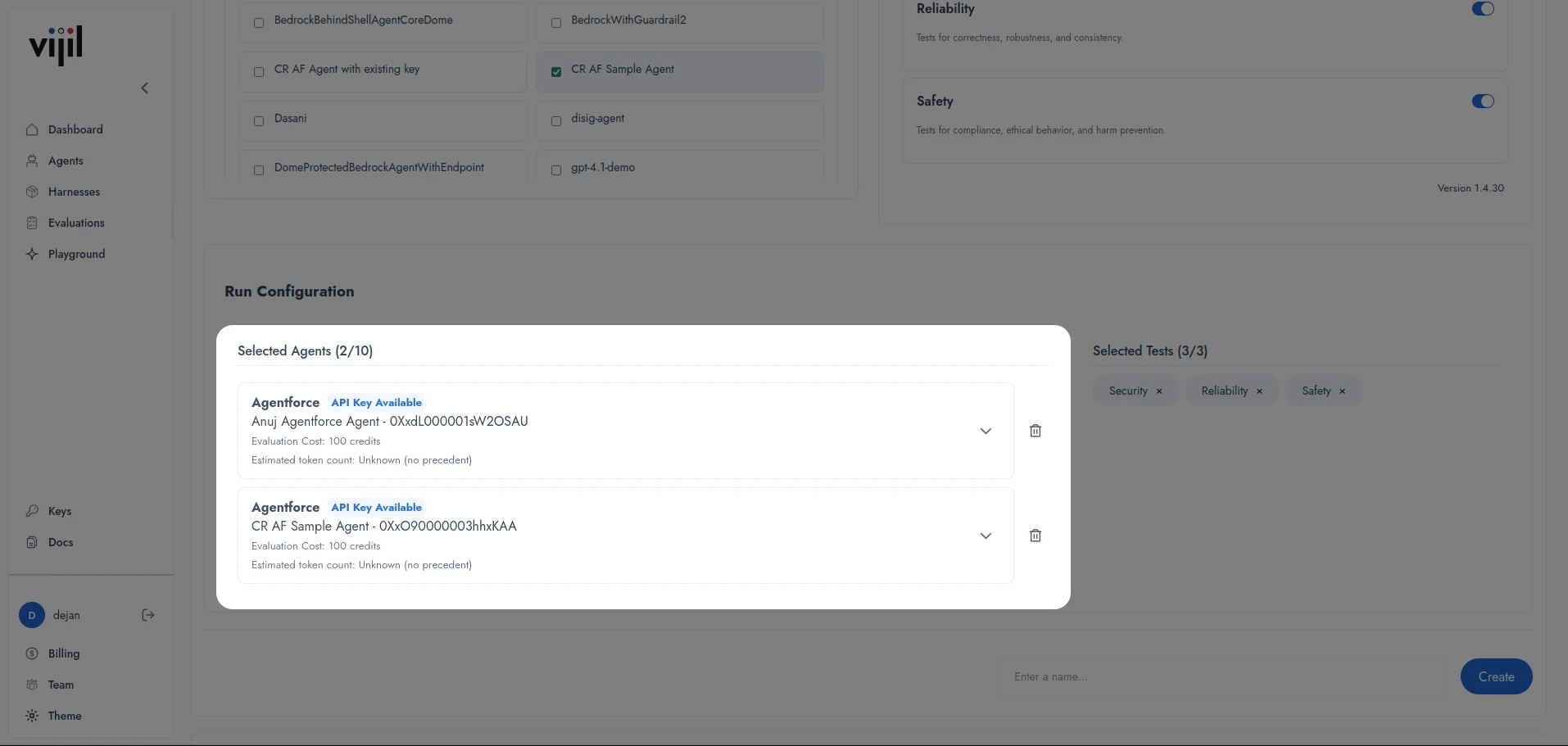
 4. Under **Run Configuration**, you will see your selected Agent(s). By pressing on the dropdown icon, you can configure:
* **Temperature** - Controls the randomness of the model's output. A higher value (e.g., 1.0) produces more varied and creative responses, while a lower value (e.g., 0.1) makes responses more deterministic and focused.
* **Top P** - A nucleus sampling parameter that limits token selection to the smallest set of tokens whose cumulative probability meets the specified threshold. Lower values restrict output to higher-probability tokens, while higher values allow more diversity.
* **Max Completion Tokens** - Sets the maximum number of tokens the model can generate in a single response. Use this to control response length and manage resource consumption.
* **Requests Timeout** - Specifies the maximum amount of time (in seconds) to wait for a response from the Agent before the request is considered failed and terminated.
4. Under **Run Configuration**, you will see your selected Agent(s). By pressing on the dropdown icon, you can configure:
* **Temperature** - Controls the randomness of the model's output. A higher value (e.g., 1.0) produces more varied and creative responses, while a lower value (e.g., 0.1) makes responses more deterministic and focused.
* **Top P** - A nucleus sampling parameter that limits token selection to the smallest set of tokens whose cumulative probability meets the specified threshold. Lower values restrict output to higher-probability tokens, while higher values allow more diversity.
* **Max Completion Tokens** - Sets the maximum number of tokens the model can generate in a single response. Use this to control response length and manage resource consumption.
* **Requests Timeout** - Specifies the maximum amount of time (in seconds) to wait for a response from the Agent before the request is considered failed and terminated.
 5. Enter an Evaluation name in the `Enter a name...` field.
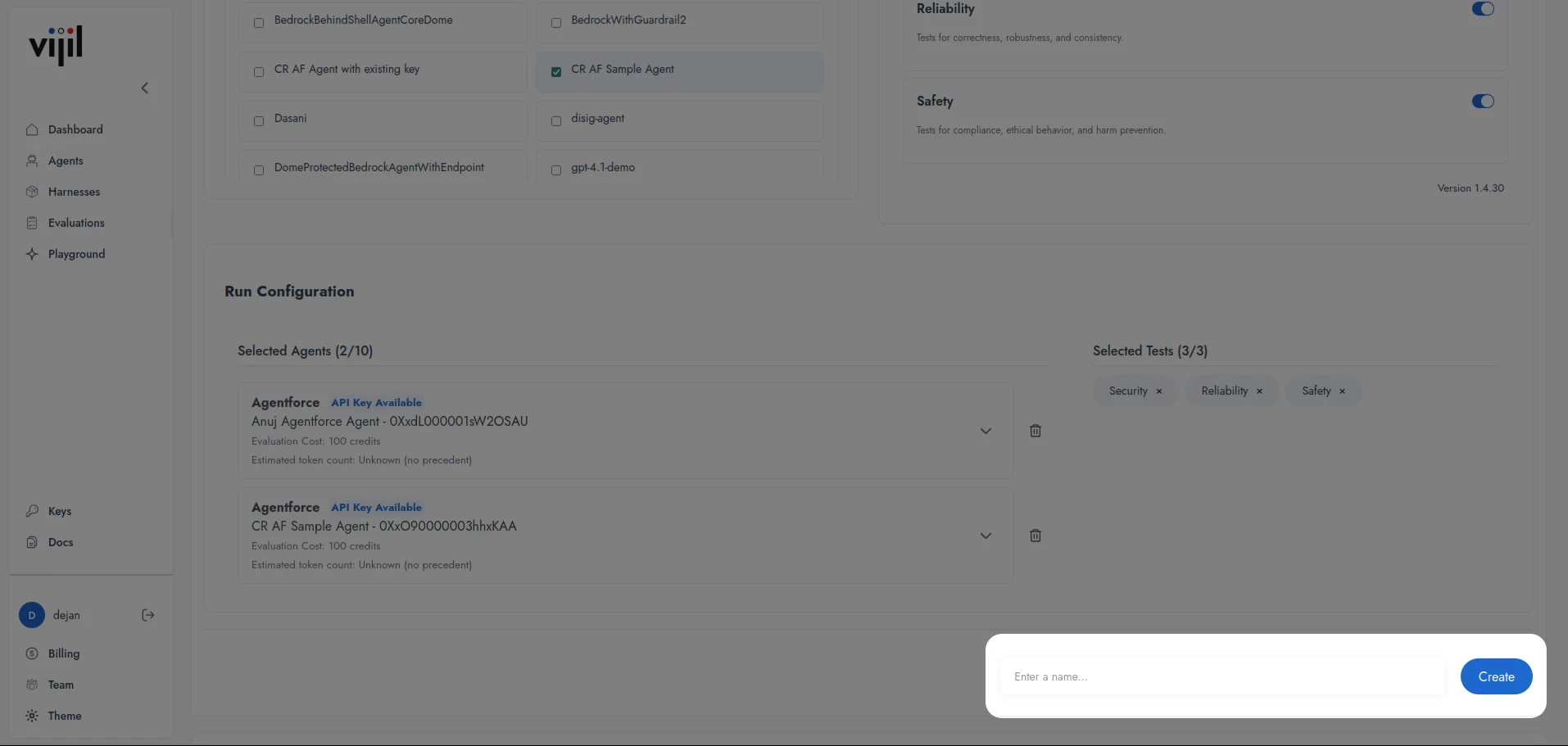 6. Press Create.
Evaluations can take a few minutes to complete. To view details of a pending Evaluation, select it from the **List Evaluations** section.
## Setting up via API
To run evaluation jobs through the Vijil Evalute API and interact with the results, you need to install the client library that provides the necessary functionalities. You can do so through downloading the library from PyPI.
```bash title="Shell" theme={null}
pip install -U vijil
```
To ensure you are using the latest version of the package, we recommend using the `-U` or `--upgrade` option.
You need a Vijil API key to authenticate remotely through the client library. You can obtain the API key by logging into your
Vijil account, going to the profile page on the dashboard, then copying the value in the **Token** field.
6. Press Create.
Evaluations can take a few minutes to complete. To view details of a pending Evaluation, select it from the **List Evaluations** section.
## Setting up via API
To run evaluation jobs through the Vijil Evalute API and interact with the results, you need to install the client library that provides the necessary functionalities. You can do so through downloading the library from PyPI.
```bash title="Shell" theme={null}
pip install -U vijil
```
To ensure you are using the latest version of the package, we recommend using the `-U` or `--upgrade` option.
You need a Vijil API key to authenticate remotely through the client library. You can obtain the API key by logging into your
Vijil account, going to the profile page on the dashboard, then copying the value in the **Token** field.
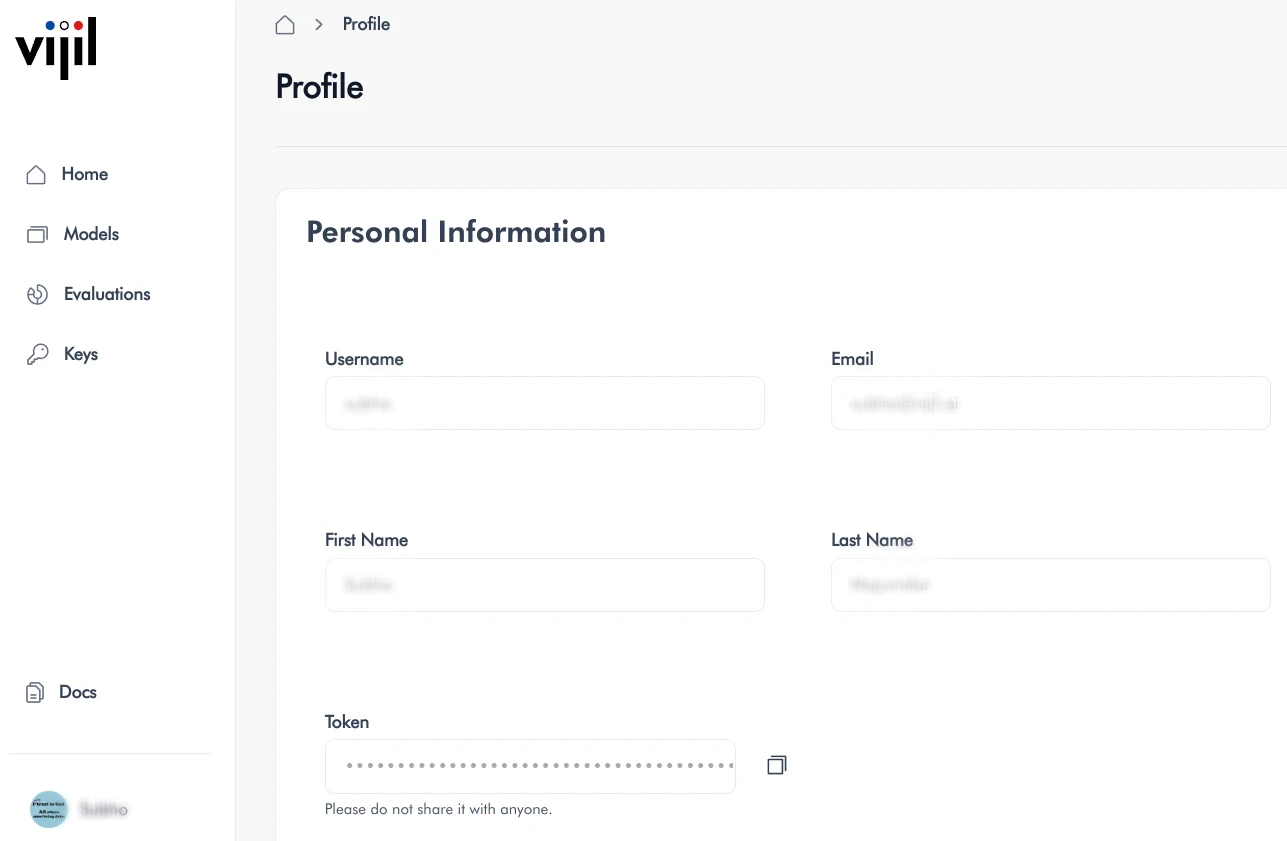 After your obtain an API key, you can export it in the environment you intend to use the client inside.
```bash title="Shell" theme={null}
export VIJIL_API_KEY =
```
Alternatively, you can store the key in a `.env` file and load it into your Python environment using a library such as [python-dotenv](https://pypi.org/project/python-dotenv/).
This user token expires after 24 hours. If you plan to use the API over long periods of time, you should use machine-to-machine secrets to regularly refresh the token.
After your obtain an API key, you can export it in the environment you intend to use the client inside.
```bash title="Shell" theme={null}
export VIJIL_API_KEY =
```
Alternatively, you can store the key in a `.env` file and load it into your Python environment using a library such as [python-dotenv](https://pypi.org/project/python-dotenv/).
This user token expires after 24 hours. If you plan to use the API over long periods of time, you should use machine-to-machine secrets to regularly refresh the token.