> ## Documentation Index
> Fetch the complete documentation index at: https://docs.vijil.ai/llms.txt
> Use this file to discover all available pages before exploring further.
# Deploy Vijil
> This guide walks through deploying the full Vijil Console stack on Kubernetes (AWS EKS). It covers AWS infrastructure setup, IAM configuration, Helm deployment, DNS, and post-install steps.
> **Already have a cluster and AWS resources?** Jump to [Step 2: IAM and EKS Add-ons](#step-2-iam-and-eks-add-ons) and then [Step 3: Helm Values and Secrets](#step-3-helm-values-and-secrets).
## Prerequisites
Before you start, make sure you have the following tools installed and configured:
| Requirement | Details |
| ----------------------------------------------------------------------------- | ------------------------------------------------------------------------------------------------------------ |
| [AWS CLI](https://aws.amazon.com/cli/) | Configured and working — `aws sts get-caller-identity` should succeed |
| [`eksctl`](https://docs.aws.amazon.com/eks/latest/eksctl/what-is-eksctl.html) | ≥ 0.160 |
| [`kubectl`](https://kubernetes.io/docs/reference/kubectl/) | ≥ 1.28 (keep client within one minor version of the server) |
| [`helm`](https://helm.sh/docs/intro/install/) | ≥ 3.8 |
| Domain + DNS | A registered domain with a Route 53 hosted zone (or another DNS provider) |
| Container images | Access to Vijil's ECR, or `vijil-console` and `vijil-console-frontend` built and pushed to your own registry |
| Helm chart | Distributed as an OCI artifact from Vijil's ECR (same access as container images) |
## Resource Checklist
Before starting, review the full list of AWS resources and external services this guide will walk you through creating. Items marked **Vijil + Customer** or **Vijil** require Vijil to update access policies on their side — request this early.
**Two steps require Vijil's involvement** before you can proceed:
1. **ECR Pull Access** (Step 2) — Vijil must grant your AWS account pull access to their container registry
2. **Diamond Artifacts** (Step 2) — Vijil must copy Diamond evaluation artifacts (\~4.5 MB) to your S3 bucket
| Resource | Required? | Who Creates It | Guide Section |
| ---------------------------- | ------------------------ | -------------------------------------------- | ------------------------------------------------------------------------------- |
| VPC + subnets | Yes | Customer | [Step 1: VPC](#vpc) |
| EKS Cluster (OIDC enabled) | Yes | Customer | [Step 1: EKS](#eks-cluster) |
| RDS PostgreSQL | Yes | Customer | [Step 1: RDS](#rds-postgresql) |
| S3 Bucket | Yes | Customer | [Step 1: S3](#s3-bucket) |
| ACM Certificate | Yes | Customer | [Step 1: ACM](#acm-certificate) |
| ECR Cross-Account Pull | Yes (if using Vijil ECR) | **Vijil + Customer** | [Step 2: ECR](#ecr-pull-access) |
| Bedrock AgentCore IAM | Yes | Customer | [Step 2: AgentCore](#bedrock-agentcore-diamond--custom-harness) |
| AgentCore Runtime | Non-dev only | Customer | [Step 2: AgentCore Runtime](#staging--non-dev-custom-harness-agentcore-runtime) |
| Diamond Artifacts | Yes | **Vijil** copies to your bucket | [Step 2: Diamond Artifacts](#diamond-artifacts) |
| LLM API Key | Yes | Customer (Groq, OpenAI, Anthropic, or local) | [Step 3: Secrets](#step-3-helm-values-and-secrets) |
| Darwin (separate Helm chart) | If evolution enabled | Customer | [Step 4.5: Darwin](#step-45-deploy-darwin-evolution-engine) |
| Route 53 DNS Records | Yes | Customer | [Step 5: DNS](#step-5-dns) |
## Architecture Overview
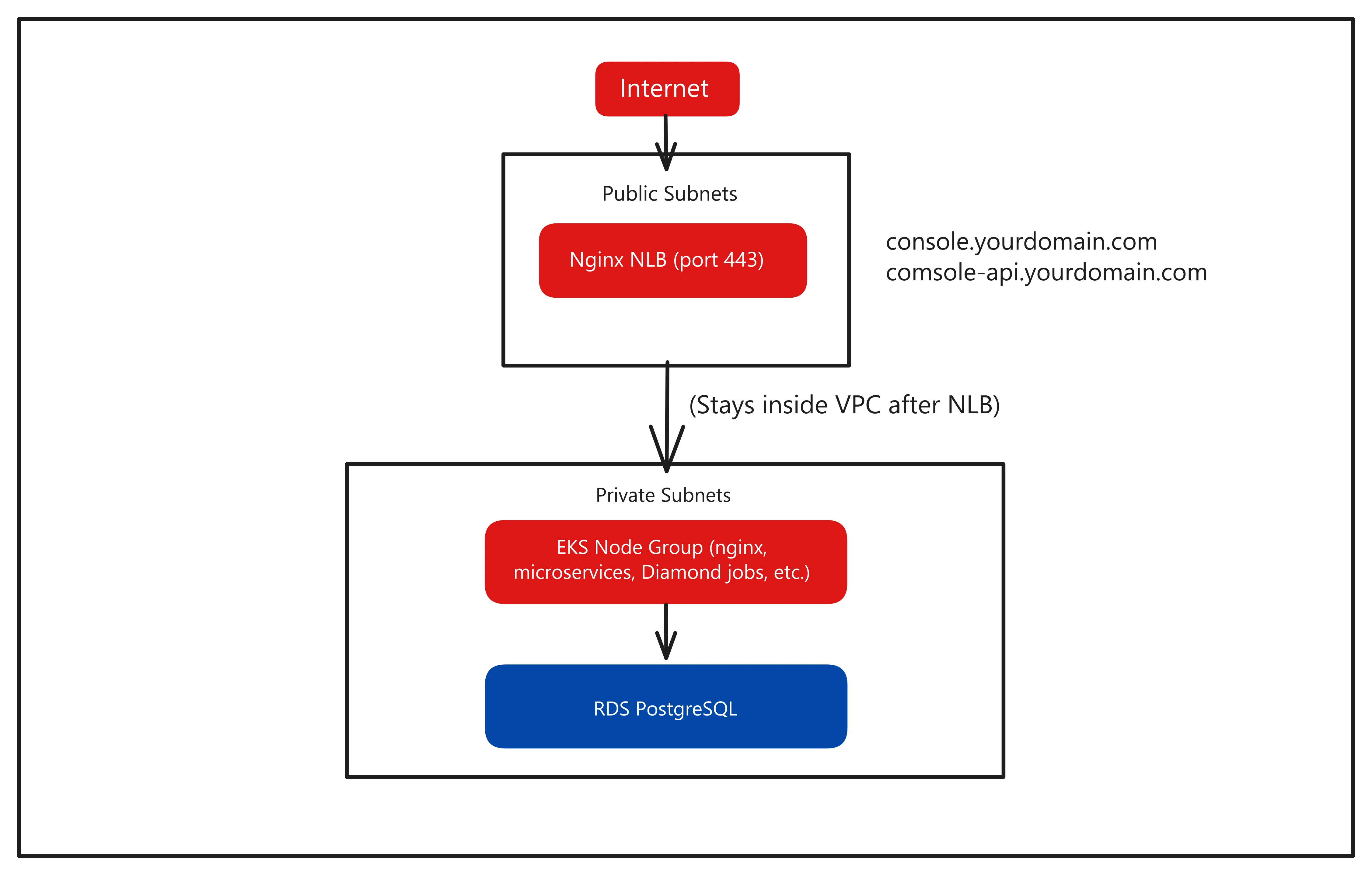 All application workloads and the database live in **private subnets**.
Only a single [NGINX Network Load Balancer (NLB)](https://docs.aws.amazon.com/elasticloadbalancing/latest/network/introduction.html) sits in a **public subnet**
, both `console.*` and `console-api.*` resolve to this one NLB, and the unified nginx router handles splitting frontend vs API traffic internally. EKS nodes reach S3 and ECR via NAT Gateway.
***
## Step 1: AWS Infrastructure
### VPC
Create a VPC with two public and two private subnets across two [Availability Zones](https://docs.aws.amazon.com/AWSEC2/latest/UserGuide/using-regions-availability-zones.html). The subnet tags are **required**. EKS uses them to discover subnets, and the [AWS Load Balancer Controller](https://kubernetes-sigs.github.io/aws-load-balancer-controller/) uses them to place NLBs correctly.
```bash theme={null}
export AWS_REGION=us-west-2
export VPC_NAME=vijil-prod
# Create VPC
VPC_ID=$(aws ec2 create-vpc \
--cidr-block 10.0.0.0/16 \
--region $AWS_REGION \
--query 'Vpc.VpcId' --output text)
aws ec2 create-tags --resources $VPC_ID \
--tags Key=Name,Value=$VPC_NAME
# Enable DNS hostnames (required for EKS)
aws ec2 modify-vpc-attribute --vpc-id $VPC_ID --enable-dns-hostnames
# Internet Gateway
IGW_ID=$(aws ec2 create-internet-gateway \
--query 'InternetGateway.InternetGatewayId' --output text)
aws ec2 attach-internet-gateway --vpc-id $VPC_ID --internet-gateway-id $IGW_ID
```
**Public subnets**: the NLB goes here. It must have the `kubernetes.io/role/elb=1` tag:
```bash theme={null}
# Replace us-west-2a / us-west-2b with your AZs
PUBLIC_SUBNET_1=$(aws ec2 create-subnet \
--vpc-id $VPC_ID --cidr-block 10.0.1.0/24 \
--availability-zone ${AWS_REGION}a \
--query 'Subnet.SubnetId' --output text)
PUBLIC_SUBNET_2=$(aws ec2 create-subnet \
--vpc-id $VPC_ID --cidr-block 10.0.2.0/24 \
--availability-zone ${AWS_REGION}b \
--query 'Subnet.SubnetId' --output text)
for SUBNET in $PUBLIC_SUBNET_1 $PUBLIC_SUBNET_2; do
aws ec2 create-tags --resources $SUBNET --tags \
Key=Name,Value="$VPC_NAME-public" \
Key=kubernetes.io/role/elb,Value=1
aws ec2 modify-subnet-attribute --subnet-id $SUBNET \
--map-public-ip-on-launch
done
# Route table: public subnets → Internet Gateway
PUBLIC_RT=$(aws ec2 create-route-table --vpc-id $VPC_ID \
--query 'RouteTable.RouteTableId' --output text)
aws ec2 create-route --route-table-id $PUBLIC_RT \
--destination-cidr-block 0.0.0.0/0 --gateway-id $IGW_ID
for SUBNET in $PUBLIC_SUBNET_1 $PUBLIC_SUBNET_2; do
aws ec2 associate-route-table --subnet-id $SUBNET --route-table-id $PUBLIC_RT
done
```
**Private subnets**: EKS nodes and RDS go here. It must have the `kubernetes.io/role/internal-elb=1` tag:
```bash theme={null}
PRIVATE_SUBNET_1=$(aws ec2 create-subnet \
--vpc-id $VPC_ID --cidr-block 10.0.3.0/24 \
--availability-zone ${AWS_REGION}a \
--query 'Subnet.SubnetId' --output text)
PRIVATE_SUBNET_2=$(aws ec2 create-subnet \
--vpc-id $VPC_ID --cidr-block 10.0.4.0/24 \
--availability-zone ${AWS_REGION}b \
--query 'Subnet.SubnetId' --output text)
for SUBNET in $PRIVATE_SUBNET_1 $PRIVATE_SUBNET_2; do
aws ec2 create-tags --resources $SUBNET --tags \
Key=Name,Value="$VPC_NAME-private" \
Key=kubernetes.io/role/internal-elb,Value=1
done
# NAT Gateway in the first public subnet (lets private nodes reach ECR and S3)
EIP=$(aws ec2 allocate-address --domain vpc \
--query 'AllocationId' --output text)
NAT_GW=$(aws ec2 create-nat-gateway \
--subnet-id $PUBLIC_SUBNET_1 --allocation-id $EIP \
--query 'NatGateway.NatGatewayId' --output text)
echo "Waiting for NAT Gateway..."
aws ec2 wait nat-gateway-available --nat-gateway-ids $NAT_GW
# Route table: private subnets → NAT Gateway
PRIVATE_RT=$(aws ec2 create-route-table --vpc-id $VPC_ID \
--query 'RouteTable.RouteTableId' --output text)
aws ec2 create-route --route-table-id $PRIVATE_RT \
--destination-cidr-block 0.0.0.0/0 --nat-gateway-id $NAT_GW
for SUBNET in $PRIVATE_SUBNET_1 $PRIVATE_SUBNET_2; do
aws ec2 associate-route-table --subnet-id $SUBNET --route-table-id $PRIVATE_RT
done
```
### EKS Cluster
```bash theme={null}
export CLUSTER_NAME=vijil-prod
export ACCOUNT_ID=$(aws sts get-caller-identity --query Account --output text)
eksctl create cluster \
--name $CLUSTER_NAME \
--region $AWS_REGION \
--version 1.30 \
--vpc-private-subnets=$PRIVATE_SUBNET_1,$PRIVATE_SUBNET_2 \
--vpc-public-subnets=$PUBLIC_SUBNET_1,$PUBLIC_SUBNET_2 \
--with-oidc \
--nodegroup-name standard-workers \
--node-type r5.xlarge \
--node-volume-size 200 \
--nodes 3 \
--nodes-min 2 \
--nodes-max 8 \
--managed
# Verify
kubectl get nodes
```
**`--with-oidc` is required.** It enables the OIDC provider used by the EBS CSI driver's IRSA configuration. Do not omit it.
#### Cluster Sizing Guidance
Vijil Console deploys 8 service pods plus telemetry (Grafana, Loki, Mimir, Tempo), a database migration job, and creates on-demand job pods for evaluations (Diamond), red-teaming, and scanning in separate namespaces.
| Profile | Node Type | Nodes | vCPU Total | Memory Total | Use Case |
| ----------------- | ----------- | ----- | ---------- | ------------ | ---------------------------------------------- |
| **Minimum** | `m5.xlarge` | 2 | 8 vCPU | 32 GiB | Small teams, light evaluation load |
| **Recommended** | `r5.xlarge` | 3 | 12 vCPU | 96 GiB | Production use with concurrent evaluations |
| **Dev reference** | `r5.xlarge` | 6 | 24 vCPU | 192 GiB | Vijil's own dev cluster (headroom for testing) |
**Why memory-optimized (r5)?** Evaluation and red-team jobs are memory-intensive. `r5` instances provide a better \$/GiB ratio than general-purpose `m5` for this workload.
**Disk:** 200 GiB gp3 per node (default 80 GiB is tight when telemetry PVCs and container images accumulate). Set via `--node-volume-size 200` in eksctl.
**Autoscaling:** Enable Cluster Autoscaler or Karpenter. Set `--nodes-min` to your baseline and `--nodes-max` high enough to absorb burst evaluation jobs. Each Diamond/red-team job runs as a separate pod — 5 concurrent evaluations means 5 extra pods.
### RDS PostgreSQL
```bash theme={null}
# Security group: allow port 5432 from EKS nodes only
RDS_SG=$(aws ec2 create-security-group \
--group-name vijil-rds-sg \
--description "RDS access from EKS nodes" \
--vpc-id $VPC_ID \
--query 'GroupId' --output text)
EKS_NODE_SG=$(aws eks describe-cluster --name $CLUSTER_NAME \
--query 'cluster.resourcesVpcConfig.clusterSecurityGroupId' --output text)
aws ec2 authorize-security-group-ingress \
--group-id $RDS_SG \
--protocol tcp --port 5432 \
--source-group $EKS_NODE_SG
# Subnet group using private subnets
aws rds create-db-subnet-group \
--db-subnet-group-name vijil-prod-subnets \
--db-subnet-group-description "Vijil Console RDS subnets" \
--subnet-ids $PRIVATE_SUBNET_1 $PRIVATE_SUBNET_2
# Custom parameter group with SSL disabled
# PostgreSQL 15+ defaults to rds.force_ssl=1; this lets the app connect without SSL
# for in-VPC-only traffic. Remove this if your app connection string uses SSL.
aws rds create-db-parameter-group \
--db-parameter-group-name vijil-pg15-no-ssl \
--db-parameter-group-family postgres15 \
--description "Vijil Console RDS — SSL disabled for in-VPC clients"
aws rds modify-db-parameter-group \
--db-parameter-group-name vijil-pg15-no-ssl \
--parameters "ParameterName=rds.force_ssl,ParameterValue=0,ApplyMethod=pending-reboot"
# Create RDS instance
aws rds create-db-instance \
--db-instance-identifier vijil-prod-pg \
--db-instance-class db.t3.medium \
--engine postgres \
--engine-version 15 \
--master-username postgres \
--master-user-password YOUR_STRONG_PASSWORD \
--db-name postgres \
--allocated-storage 20 \
--storage-type gp3 \
--no-publicly-accessible \
--vpc-security-group-ids $RDS_SG \
--db-subnet-group-name vijil-prod-subnets \
--db-parameter-group-name vijil-pg15-no-ssl \
--backup-retention-period 7
# Wait for it to be available (takes a few minutes), then get the endpoint
aws rds wait db-instance-available --db-instance-identifier vijil-prod-pg
RDS_ENDPOINT=$(aws rds describe-db-instances \
--db-instance-identifier vijil-prod-pg \
--query 'DBInstances[0].Endpoint.Address' --output text)
echo "RDS endpoint: $RDS_ENDPOINT"
```
### S3 Bucket
```bash theme={null}
export S3_BUCKET=vijil-console-data-prod
aws s3api create-bucket \
--bucket $S3_BUCKET \
--region $AWS_REGION \
--create-bucket-configuration LocationConstraint=$AWS_REGION
# Block all public access
aws s3api put-public-access-block \
--bucket $S3_BUCKET \
--public-access-block-configuration \
BlockPublicAcls=true,IgnorePublicAcls=true,BlockPublicPolicy=true,RestrictPublicBuckets=true
```
Add a CORS configuration so the bucket can accept signed-URL file uploads from the browser:
```bash theme={null}
cat > /tmp/s3-cors.json <<'EOF'
[
{
"AllowedHeaders": ["*"],
"AllowedMethods": ["GET", "PUT", "POST", "HEAD"],
"AllowedOrigins": ["https://*.yourdomain.com"],
"ExposeHeaders": ["ETag", "x-amz-request-id", "x-amz-id-2"],
"MaxAgeSeconds": 3000
}
]
EOF
aws s3api put-bucket-cors --bucket $S3_BUCKET --cors-configuration file:///tmp/s3-cors.json
```
### ACM Certificate
Request a wildcard certificate, it covers both `console.` and `console-api.` subdomains with a single cert:
```bash theme={null}
CERT_ARN=$(aws acm request-certificate \
--domain-name "*.yourdomain.com" \
--validation-method DNS \
--region $AWS_REGION \
--query 'CertificateArn' --output text)
echo "Certificate ARN: $CERT_ARN"
# Add the CNAME record from the ACM console to Route 53 to validate:
# aws acm describe-certificate --certificate-arn $CERT_ARN
```
Wait for `ISSUED` status before proceeding:
```bash theme={null}
aws acm wait certificate-validated --certificate-arn $CERT_ARN
```
***
## Step 2: IAM and EKS Add-ons
### IAM Policy for S3
Create a scoped S3 policy for your app data bucket. If you are deploying to multiple environments, use distinct policy names (e.g. `VijilConsoleS3Access` for prod, `VijilConsoleS3AccessStaging` for staging) to avoid conflicts.
```bash theme={null}
export S3_BUCKET=vijil-console-data-prod # adjust per environment
cat > /tmp/vijil-s3-policy.json < /tmp/pod-identity-trust.json <
Alternatively, use the EKS managed add-on: `aws eks create-addon --cluster-name $CLUSTER_NAME --addon-name aws-ebs-csi-driver`
The EBS CSI driver deploys two controller replicas across AZs. Verify they show 5/5 Running before proceeding.
### ECR Pull Access
**Vijil action required.** Before you can pull container images or the Helm chart, Vijil must run `put-registry-policy` in their account to grant your AWS account pull access. Request this before starting Step 2. The registry-level policy covers all repositories, so a single setup grants access to both container images and the Helm chart (OCI artifact).
#### Option A: Vijil's ECR (cross-account pull)
Vijil's images and Helm chart live in account `266735823956` (region `us-west-2`). Two steps are required: one run by Vijil's side, one by yours.
**Step 1 - Vijil side** (run in account `266735823956`): Grant your account pull access on the ECR registry.
```bash theme={null}
# Run in Vijil account (266735823956)
export AWS_REGION=us-west-2
CUSTOMER_ACCOUNT_ID=YOUR_ACCOUNT_ID
cat > /tmp/ecr-registry-policy.json < /tmp/vijil-ecr-pull-policy.json <<'EOF'
{
"Version": "2012-10-17",
"Statement": [
{
"Effect": "Allow",
"Action": "ecr:GetAuthorizationToken",
"Resource": "*"
},
{
"Effect": "Allow",
"Action": [
"ecr:BatchGetImage",
"ecr:GetDownloadUrlForLayer"
],
"Resource": "arn:aws:ecr:us-west-2:266735823956:repository/*"
}
]
}
EOF
aws iam put-role-policy \
--role-name $NODE_ROLE \
--policy-name VijilECRPull \
--policy-document file:///tmp/vijil-ecr-pull-policy.json
```
After a minute, run a test pod that pulls from Vijil's ECR:
```bash theme={null}
kubectl run ecr-test \
--image=266735823956.dkr.ecr.us-west-2.amazonaws.com/vijil-console:latest \
--restart=Never --rm -it -- /bin/sh -c "echo ok"
```
#### Option B: Your own registry
Build and push images to your own registry, then override `*.image.repository` in your values file (see [Step 3](#step-3-helm-values-and-secrets)).
### Bedrock AgentCore (Diamond / custom Harness)
The Diamond evaluation page and custom Harness workflows call the Bedrock AgentCore API. Attach a scoped policy to the same IAM principal your Console pods use for AWS access. If you used Pod Identity, attach it to the Pod Identity role. If you used the node IAM role, attach it to that.
```bash theme={null}
# If using Pod Identity, set BEDROCK_ROLE to your Pod Identity role name (e.g. VijilConsoleS3Role)
# If using node IAM, resolve the node role:
BEDROCK_ROLE=${BEDROCK_ROLE:-$(aws eks describe-nodegroup \
--cluster-name $CLUSTER_NAME \
--nodegroup-name standard-workers \
--query 'nodegroup.nodeRole' --output text | awk -F/ '{print $NF}')}
export ACCOUNT_ID=$(aws sts get-caller-identity --query Account --output text)
cat > /tmp/vijil-bedrock-agentcore-policy.json < --policy-document file://policy.json --set-as-default`.
### Staging / Non-Dev: Custom Harness AgentCore Runtime
In dev, a custom Harness AgentCore runtime already exists in the account and is looked up by name. In any non-dev account (staging, customer), that runtime does not exist — you need to create one and point the Console at it via `CUSTOM_HARNESS_AGENT_RUNTIME_ARN`.
**Prerequisite:** Vijil's dev ECR (`266735823956`) must allow your account to pull images — see [2.4 Step 1](#option-a--vijils-ecr-cross-account-pull).
#### Step 1: Create the execution role
The runtime runs the Harness container under an IAM role that Bedrock AgentCore assumes. Create a role with (a) a trust policy allowing `bedrock-agentcore.amazonaws.com`, and (b) permissions for ECR pull (your account + Vijil’s 266735823956), S3 for your app bucket, and CloudWatch Logs.
Replace `STAGING_ACCOUNT_ID` with your account ID (e.g. 565393042914 for staging). Run in the staging account:
```bash theme={null}
export AWS_PROFILE=your-staging-profile
export AWS_REGION=us-west-2
export STAGING_ACCOUNT_ID=$(aws sts get-caller-identity --query Account --output text)
cat > /tmp/agentcore-trust.json < /tmp/agentcore-permissions.json <
**Vijil action required.** Vijil must copy Diamond evaluation artifacts (\~4.5 MB, 38 files) to your S3 bucket before evaluations can run.
The Diamond evaluation engine downloads detector configs, harness definitions, and small model weights from S3 at startup. These artifacts are versioned and live under a `diamond/{RESOURCE_VERSION}/` prefix, where `RESOURCE_VERSION` is a version string managed by Vijil (e.g. `v1.2.0`) that matches the deployed Diamond release. You do not need to set this value — the application reads it automatically.
**What gets copied:**
```
diamond/{RESOURCE_VERSION}/
├── harnesses/ # Standard trust score harnesses (safety/, security/, reliability/)
├── detector_configs/ # YAML detector configs (strongreject, refusal, etc.)
├── weights/ # Small model weights (~2 MB)
├── garak/resources/ # Garak redteam resources
└── mitigations/ # Mitigation data/mapping
```
**How it works:**
1. **Vijil** runs `aws s3 sync` from their internal artifacts bucket to your S3 bucket.
2. **You** set `RESOURCE_BUCKET_NAME` to your own bucket (the same bucket as `S3_BUCKET_NAME`). No separate artifacts bucket or cross-account IAM is needed — your existing S3 policy already covers your own bucket.
3. If using the `install` block in your Helm values, `install.aws.s3Bucket` automatically sets both `S3_BUCKET_NAME` and `RESOURCE_BUCKET_NAME` to the same value. No extra configuration required.
***
## Step 3: Helm Values and Secrets
Work from the chart directory:
```bash theme={null}
cd helm_charts/vijil-console
```
### 3.1 Secrets file
```bash theme={null}
cp values/secrets/example.yaml values/secrets/secrets.yaml
```
Edit `values/secrets/secrets.yaml`:
```yaml theme={null}
secrets:
vijil-console:
POSTGRES_PASSWORD: "the-rds-password-you-set-in-step-1.3"
SECRET_KEY: "$(openssl rand -hex 32)" # generate once and store securely
# LLM provider for report generation and Diamond evaluations.
# Default provider is Groq. To use a different provider, set
# REPORTS_LLM_PROVIDER (groq | openai | anthropic | local) and
# REPORTS_MODEL (e.g. gpt-4o, claude-sonnet-4-20250514).
GROQ_API_KEY: "your-groq-api-key" # default provider
# OPENAI_API_KEY: "sk-..." # if using openai
# ANTHROPIC_API_KEY: "sk-ant-..." # if using anthropic
vijil-diamond:
GROQ_API_KEY: "your-groq-api-key" # must match provider above
# OPENAI_API_KEY: "sk-..."
# ANTHROPIC_API_KEY: "sk-ant-..."
```
**Never commit `secrets.yaml`** — add it to `.gitignore`.
### 3.2 Environment values file
Create `my-values.yaml`. The `install` block is the simplest way to configure the chart — set values once and the chart derives the redundant env vars for you:
```yaml theme={null}
commonEnv:
# Database (RDS endpoint from Step 1.3)
POSTGRES_HOST: "vijil-prod-pg.xxxx.us-west-2.rds.amazonaws.com"
# S3
S3_BUCKET_NAME: "vijil-console-data-prod"
AWS_REGION: "us-west-2"
# Custom harness bucket (can be the same bucket)
CUSTOM_HARNESS_BUCKET_NAME: "vijil-console-data-prod"
# Frontend and API URLs — both must be reachable from the internet
# because the React SPA calls the API from the user's browser
VITE_API_PREFIX: "https://console-api.yourdomain.com"
API_HOST: "https://console-api.yourdomain.com"
API_DOMAIN_FOR_CSP: "console-api.yourdomain.com"
CORS_ORIGINS: "https://console.yourdomain.com,https://console-api.yourdomain.com"
# Custom harness / Diamond (optional): default CUSTOM_HARNESS_AGENT_NAME is "vijil_dev_harness_agent", which is looked up in this account. In non-dev (e.g. staging), set CUSTOM_HARNESS_AGENT_RUNTIME_ARN to your AgentCore runtime ARN, or create a runtime with that name.
# CUSTOM_HARNESS_AGENT_RUNTIME_ARN: "arn:aws:bedrock-agentcore:us-west-2:ACCOUNT:runtime/RUNTIME_ID"
# Single nginx NLB — internet-facing (public subnets)
# NOTE: internal: false is required for users outside the VPC to reach both the UI and API.
# The default values.yaml has internal: true (private-only). Override it here.
nginx:
service:
aws:
nlb:
internal: false # ← must be false for public access
subnets: "subnet-public-1-id,subnet-public-2-id" # public subnet IDs from Step 1.1
tls:
enabled: true
certificateArn: "arn:aws:acm:us-west-2:YOUR_ACCOUNT_ID:certificate/YOUR_CERT_ID"
```
Why the nginx NLB must be internal: false for public deployments: The React frontend is a single-page application that runs in the user's browser.
`VITE_API_PREFIX` is baked into the frontend at build time, and the browser makes API calls directly to that URL. If the single nginx NLB is internal-only, browser requests will fail even if DNS resolves.
***
## Step 4: Helm Install
```bash theme={null}
# Authenticate Helm with Vijil's ECR (one-time per session)
aws ecr get-login-password --region us-west-2 \
| helm registry login --username AWS --password-stdin 266735823956.dkr.ecr.us-west-2.amazonaws.com
# Install from ECR (replace VERSION with the chart version, e.g. 1.0.0)
helm install vijil-console \
oci://266735823956.dkr.ecr.us-west-2.amazonaws.com/vijil-console --version VERSION \
--namespace vijil-console \
--create-namespace \
-f values/secrets/secrets.yaml \
-f my-values.yaml \
--set telemetry.enabled=true
# Watch rollout
kubectl get pods -n vijil-console -w
```
Wait for all pods to reach Running. Then get the nginx NLB hostname:
```bash theme={null}
kubectl get svc -n vijil-console vijil-console-nginx \
-o jsonpath='{.status.loadBalancer.ingress[0].hostname}{"\n"}'
```
If `EXTERNAL-IP` shows ``, wait a moment and re-run.
***
## Step 4.5: Deploy Darwin (Evolution Engine)
Darwin is the evolution engine. It runs in its own namespace (`vijil-darwin`) and is deployed separately from the `vijil-console` Helm chart.
The Console chart routes `/evolution/...` API traffic to `service-darwin.vijil-darwin.svc.cluster.local`. Console starts fine without Darwin, but any `/evolution` calls will return `502` or `504` until Darwin is running.
```bash theme={null}
# From the vijil-darwin repo root
helm upgrade vijil-darwin helm_charts/vijil-darwin \
--install \
--namespace vijil-darwin \
--create-namespace \
--values helm_charts/vijil-darwin/values.yaml \
--values helm_charts/vijil-darwin/my-values.yaml \
--set image.tag=
```
Verify Darwin is healthy:
```bash theme={null}
kubectl get pods -n vijil-darwin
# Health check via port-forward
kubectl port-forward -n vijil-darwin svc/service-darwin 8099:80 &
curl http://localhost:8099/health # expect: 200
curl http://localhost:8099/health/ready # expect: 200
```
***
## Step 5: DNS
Create Route 53 records after the NLB is provisioned. Both `console.*` and `console-api.*` point to the **same nginx NLB hostname**.
```bash theme={null}
HOSTED_ZONE_ID=$(aws route53 list-hosted-zones-by-name \
--dns-name yourdomain.com \
--query 'HostedZones[0].Id' --output text | awk -F/ '{print $3}')
NGINX_NLB=$(kubectl get svc vijil-console-nginx -n vijil-console \
-o jsonpath='{.status.loadBalancer.ingress[0].hostname}')
# Alias hosted zone ID for NLBs in us-west-2
NLB_HOSTED_ZONE_ID=Z18D5FSROUN65G
cat > /tmp/dns-records.json <
If you prefer `CNAME` records instead of alias records, replace `AliasTarget` with `"Type": "CNAME"` and `"ResourceRecords": [{"Value": "$NGINX_NLB"}]` — no `NLB_HOSTED_ZONE_ID` needed.
The NLB alias hosted zone ID differs by region — see the [full list in AWS docs](https://docs.aws.amazon.com/general/latest/gr/elb.html).
***
## Step 6: Database Migrations
Migrations run automatically as Helm `pre-install` and `pre-upgrade` hooks — no manual action needed on a normal install. Verify they completed:
```bash theme={null}
kubectl get jobs -n vijil-console
# Expect: vijil-console-migrate-teams and vijil-console-migrate-agent-environment
# both show COMPLETIONS: 1/1
```
If a hook failed, run the migration manually after pods are in `Running` state:
```bash theme={null}
# Teams service
kubectl exec -n vijil-console \
$(kubectl get pod -n vijil-console -l app=teams -o jsonpath='{.items[0].metadata.name}') -- \
bash -c "cd /vijil-console && python -m alembic -c src/service_teams/alembic.ini upgrade head"
# Agent-environment service
kubectl exec -n vijil-console \
$(kubectl get pod -n vijil-console -l app=agent-environment -o jsonpath='{.items[0].metadata.name}') -- \
bash -c "cd /vijil-console && python -m alembic -c src/service_agent_environment/alembic.ini upgrade head"
```
***
## Step 7: Bootstrap
Run from the **repo root** (not the chart directory):
```bash theme={null}
export BOOTSTRAP_USER_EMAIL=admin@yourdomain.com
export BOOTSTRAP_USER_PASSWORD=your-secure-admin-password
export BOOTSTRAP_USER_NAME="Admin"
export TEAMS_SERVICE_URL=https://console-api.yourdomain.com
poetry run python scripts/bootstrap_teams.py
```
Optionally seed default content:
```bash theme={null}
# Predefined agents (Groq, OpenAI, etc.)
poetry run python scripts/seed_agents.py
# System preset personas (professional + adversarial)
poetry run python scripts/seed_persona_presets.py
# Demographic dimensions for bias testing
poetry run python scripts/seed_demographics.py
# Compliance policy presets (GDPR, CCPA, OWASP, etc.)
poetry run python scripts/seed_policy_presets.py
```
**For staging environments with in-cluster sample agents:** Set these env vars before running `seed_agents.py` to point seeded agents at in-cluster sample agent services:
```bash theme={null}
export SAMPLE_AGENTS_USE_EKS_URLS=1
export SAMPLE_AGENTS_EKS_NAMESPACE=vijil-sample-agents # default
export SAMPLE_AGENTS_DUMMY_API_KEY=dummy
```
Then run the seed script (or use `--update` to refresh existing agents’ URLs to `http://..svc.cluster.local/v1`):
```bash theme={null}
poetry run python scripts/seed_agents.py
# Or to update existing agents' URLs without re-seeding:
poetry run python scripts/seed_agents.py --update
```
***
## Step 8: Verify
```bash theme={null}
# All pods running
kubectl get pods -n vijil-console
kubectl get pods -n vijil-telemetry
kubectl get pods -n vijil-darwin
# API health checks — the gateway exposes these paths (no root /healthz)
curl -f https://console-api.yourdomain.com/teams/healthz
curl -f https://console-api.yourdomain.com/evaluations/healthz
curl -f https://console-api.yourdomain.com/console/healthz
# Frontend loads
curl -f -o /dev/null -w "%{http_code}" https://console.yourdomain.com/
# Expect: 200
# Run smoke tests
make helm-smoketest
```
Access the UI at `https://console.yourdomain.com` and log in with the credentials you set in bootstrap.
All application workloads and the database live in **private subnets**.
Only a single [NGINX Network Load Balancer (NLB)](https://docs.aws.amazon.com/elasticloadbalancing/latest/network/introduction.html) sits in a **public subnet**
, both `console.*` and `console-api.*` resolve to this one NLB, and the unified nginx router handles splitting frontend vs API traffic internally. EKS nodes reach S3 and ECR via NAT Gateway.
***
## Step 1: AWS Infrastructure
### VPC
Create a VPC with two public and two private subnets across two [Availability Zones](https://docs.aws.amazon.com/AWSEC2/latest/UserGuide/using-regions-availability-zones.html). The subnet tags are **required**. EKS uses them to discover subnets, and the [AWS Load Balancer Controller](https://kubernetes-sigs.github.io/aws-load-balancer-controller/) uses them to place NLBs correctly.
```bash theme={null}
export AWS_REGION=us-west-2
export VPC_NAME=vijil-prod
# Create VPC
VPC_ID=$(aws ec2 create-vpc \
--cidr-block 10.0.0.0/16 \
--region $AWS_REGION \
--query 'Vpc.VpcId' --output text)
aws ec2 create-tags --resources $VPC_ID \
--tags Key=Name,Value=$VPC_NAME
# Enable DNS hostnames (required for EKS)
aws ec2 modify-vpc-attribute --vpc-id $VPC_ID --enable-dns-hostnames
# Internet Gateway
IGW_ID=$(aws ec2 create-internet-gateway \
--query 'InternetGateway.InternetGatewayId' --output text)
aws ec2 attach-internet-gateway --vpc-id $VPC_ID --internet-gateway-id $IGW_ID
```
**Public subnets**: the NLB goes here. It must have the `kubernetes.io/role/elb=1` tag:
```bash theme={null}
# Replace us-west-2a / us-west-2b with your AZs
PUBLIC_SUBNET_1=$(aws ec2 create-subnet \
--vpc-id $VPC_ID --cidr-block 10.0.1.0/24 \
--availability-zone ${AWS_REGION}a \
--query 'Subnet.SubnetId' --output text)
PUBLIC_SUBNET_2=$(aws ec2 create-subnet \
--vpc-id $VPC_ID --cidr-block 10.0.2.0/24 \
--availability-zone ${AWS_REGION}b \
--query 'Subnet.SubnetId' --output text)
for SUBNET in $PUBLIC_SUBNET_1 $PUBLIC_SUBNET_2; do
aws ec2 create-tags --resources $SUBNET --tags \
Key=Name,Value="$VPC_NAME-public" \
Key=kubernetes.io/role/elb,Value=1
aws ec2 modify-subnet-attribute --subnet-id $SUBNET \
--map-public-ip-on-launch
done
# Route table: public subnets → Internet Gateway
PUBLIC_RT=$(aws ec2 create-route-table --vpc-id $VPC_ID \
--query 'RouteTable.RouteTableId' --output text)
aws ec2 create-route --route-table-id $PUBLIC_RT \
--destination-cidr-block 0.0.0.0/0 --gateway-id $IGW_ID
for SUBNET in $PUBLIC_SUBNET_1 $PUBLIC_SUBNET_2; do
aws ec2 associate-route-table --subnet-id $SUBNET --route-table-id $PUBLIC_RT
done
```
**Private subnets**: EKS nodes and RDS go here. It must have the `kubernetes.io/role/internal-elb=1` tag:
```bash theme={null}
PRIVATE_SUBNET_1=$(aws ec2 create-subnet \
--vpc-id $VPC_ID --cidr-block 10.0.3.0/24 \
--availability-zone ${AWS_REGION}a \
--query 'Subnet.SubnetId' --output text)
PRIVATE_SUBNET_2=$(aws ec2 create-subnet \
--vpc-id $VPC_ID --cidr-block 10.0.4.0/24 \
--availability-zone ${AWS_REGION}b \
--query 'Subnet.SubnetId' --output text)
for SUBNET in $PRIVATE_SUBNET_1 $PRIVATE_SUBNET_2; do
aws ec2 create-tags --resources $SUBNET --tags \
Key=Name,Value="$VPC_NAME-private" \
Key=kubernetes.io/role/internal-elb,Value=1
done
# NAT Gateway in the first public subnet (lets private nodes reach ECR and S3)
EIP=$(aws ec2 allocate-address --domain vpc \
--query 'AllocationId' --output text)
NAT_GW=$(aws ec2 create-nat-gateway \
--subnet-id $PUBLIC_SUBNET_1 --allocation-id $EIP \
--query 'NatGateway.NatGatewayId' --output text)
echo "Waiting for NAT Gateway..."
aws ec2 wait nat-gateway-available --nat-gateway-ids $NAT_GW
# Route table: private subnets → NAT Gateway
PRIVATE_RT=$(aws ec2 create-route-table --vpc-id $VPC_ID \
--query 'RouteTable.RouteTableId' --output text)
aws ec2 create-route --route-table-id $PRIVATE_RT \
--destination-cidr-block 0.0.0.0/0 --nat-gateway-id $NAT_GW
for SUBNET in $PRIVATE_SUBNET_1 $PRIVATE_SUBNET_2; do
aws ec2 associate-route-table --subnet-id $SUBNET --route-table-id $PRIVATE_RT
done
```
### EKS Cluster
```bash theme={null}
export CLUSTER_NAME=vijil-prod
export ACCOUNT_ID=$(aws sts get-caller-identity --query Account --output text)
eksctl create cluster \
--name $CLUSTER_NAME \
--region $AWS_REGION \
--version 1.30 \
--vpc-private-subnets=$PRIVATE_SUBNET_1,$PRIVATE_SUBNET_2 \
--vpc-public-subnets=$PUBLIC_SUBNET_1,$PUBLIC_SUBNET_2 \
--with-oidc \
--nodegroup-name standard-workers \
--node-type r5.xlarge \
--node-volume-size 200 \
--nodes 3 \
--nodes-min 2 \
--nodes-max 8 \
--managed
# Verify
kubectl get nodes
```
**`--with-oidc` is required.** It enables the OIDC provider used by the EBS CSI driver's IRSA configuration. Do not omit it.
#### Cluster Sizing Guidance
Vijil Console deploys 8 service pods plus telemetry (Grafana, Loki, Mimir, Tempo), a database migration job, and creates on-demand job pods for evaluations (Diamond), red-teaming, and scanning in separate namespaces.
| Profile | Node Type | Nodes | vCPU Total | Memory Total | Use Case |
| ----------------- | ----------- | ----- | ---------- | ------------ | ---------------------------------------------- |
| **Minimum** | `m5.xlarge` | 2 | 8 vCPU | 32 GiB | Small teams, light evaluation load |
| **Recommended** | `r5.xlarge` | 3 | 12 vCPU | 96 GiB | Production use with concurrent evaluations |
| **Dev reference** | `r5.xlarge` | 6 | 24 vCPU | 192 GiB | Vijil's own dev cluster (headroom for testing) |
**Why memory-optimized (r5)?** Evaluation and red-team jobs are memory-intensive. `r5` instances provide a better \$/GiB ratio than general-purpose `m5` for this workload.
**Disk:** 200 GiB gp3 per node (default 80 GiB is tight when telemetry PVCs and container images accumulate). Set via `--node-volume-size 200` in eksctl.
**Autoscaling:** Enable Cluster Autoscaler or Karpenter. Set `--nodes-min` to your baseline and `--nodes-max` high enough to absorb burst evaluation jobs. Each Diamond/red-team job runs as a separate pod — 5 concurrent evaluations means 5 extra pods.
### RDS PostgreSQL
```bash theme={null}
# Security group: allow port 5432 from EKS nodes only
RDS_SG=$(aws ec2 create-security-group \
--group-name vijil-rds-sg \
--description "RDS access from EKS nodes" \
--vpc-id $VPC_ID \
--query 'GroupId' --output text)
EKS_NODE_SG=$(aws eks describe-cluster --name $CLUSTER_NAME \
--query 'cluster.resourcesVpcConfig.clusterSecurityGroupId' --output text)
aws ec2 authorize-security-group-ingress \
--group-id $RDS_SG \
--protocol tcp --port 5432 \
--source-group $EKS_NODE_SG
# Subnet group using private subnets
aws rds create-db-subnet-group \
--db-subnet-group-name vijil-prod-subnets \
--db-subnet-group-description "Vijil Console RDS subnets" \
--subnet-ids $PRIVATE_SUBNET_1 $PRIVATE_SUBNET_2
# Custom parameter group with SSL disabled
# PostgreSQL 15+ defaults to rds.force_ssl=1; this lets the app connect without SSL
# for in-VPC-only traffic. Remove this if your app connection string uses SSL.
aws rds create-db-parameter-group \
--db-parameter-group-name vijil-pg15-no-ssl \
--db-parameter-group-family postgres15 \
--description "Vijil Console RDS — SSL disabled for in-VPC clients"
aws rds modify-db-parameter-group \
--db-parameter-group-name vijil-pg15-no-ssl \
--parameters "ParameterName=rds.force_ssl,ParameterValue=0,ApplyMethod=pending-reboot"
# Create RDS instance
aws rds create-db-instance \
--db-instance-identifier vijil-prod-pg \
--db-instance-class db.t3.medium \
--engine postgres \
--engine-version 15 \
--master-username postgres \
--master-user-password YOUR_STRONG_PASSWORD \
--db-name postgres \
--allocated-storage 20 \
--storage-type gp3 \
--no-publicly-accessible \
--vpc-security-group-ids $RDS_SG \
--db-subnet-group-name vijil-prod-subnets \
--db-parameter-group-name vijil-pg15-no-ssl \
--backup-retention-period 7
# Wait for it to be available (takes a few minutes), then get the endpoint
aws rds wait db-instance-available --db-instance-identifier vijil-prod-pg
RDS_ENDPOINT=$(aws rds describe-db-instances \
--db-instance-identifier vijil-prod-pg \
--query 'DBInstances[0].Endpoint.Address' --output text)
echo "RDS endpoint: $RDS_ENDPOINT"
```
### S3 Bucket
```bash theme={null}
export S3_BUCKET=vijil-console-data-prod
aws s3api create-bucket \
--bucket $S3_BUCKET \
--region $AWS_REGION \
--create-bucket-configuration LocationConstraint=$AWS_REGION
# Block all public access
aws s3api put-public-access-block \
--bucket $S3_BUCKET \
--public-access-block-configuration \
BlockPublicAcls=true,IgnorePublicAcls=true,BlockPublicPolicy=true,RestrictPublicBuckets=true
```
Add a CORS configuration so the bucket can accept signed-URL file uploads from the browser:
```bash theme={null}
cat > /tmp/s3-cors.json <<'EOF'
[
{
"AllowedHeaders": ["*"],
"AllowedMethods": ["GET", "PUT", "POST", "HEAD"],
"AllowedOrigins": ["https://*.yourdomain.com"],
"ExposeHeaders": ["ETag", "x-amz-request-id", "x-amz-id-2"],
"MaxAgeSeconds": 3000
}
]
EOF
aws s3api put-bucket-cors --bucket $S3_BUCKET --cors-configuration file:///tmp/s3-cors.json
```
### ACM Certificate
Request a wildcard certificate, it covers both `console.` and `console-api.` subdomains with a single cert:
```bash theme={null}
CERT_ARN=$(aws acm request-certificate \
--domain-name "*.yourdomain.com" \
--validation-method DNS \
--region $AWS_REGION \
--query 'CertificateArn' --output text)
echo "Certificate ARN: $CERT_ARN"
# Add the CNAME record from the ACM console to Route 53 to validate:
# aws acm describe-certificate --certificate-arn $CERT_ARN
```
Wait for `ISSUED` status before proceeding:
```bash theme={null}
aws acm wait certificate-validated --certificate-arn $CERT_ARN
```
***
## Step 2: IAM and EKS Add-ons
### IAM Policy for S3
Create a scoped S3 policy for your app data bucket. If you are deploying to multiple environments, use distinct policy names (e.g. `VijilConsoleS3Access` for prod, `VijilConsoleS3AccessStaging` for staging) to avoid conflicts.
```bash theme={null}
export S3_BUCKET=vijil-console-data-prod # adjust per environment
cat > /tmp/vijil-s3-policy.json < /tmp/pod-identity-trust.json <
Alternatively, use the EKS managed add-on: `aws eks create-addon --cluster-name $CLUSTER_NAME --addon-name aws-ebs-csi-driver`
The EBS CSI driver deploys two controller replicas across AZs. Verify they show 5/5 Running before proceeding.
### ECR Pull Access
**Vijil action required.** Before you can pull container images or the Helm chart, Vijil must run `put-registry-policy` in their account to grant your AWS account pull access. Request this before starting Step 2. The registry-level policy covers all repositories, so a single setup grants access to both container images and the Helm chart (OCI artifact).
#### Option A: Vijil's ECR (cross-account pull)
Vijil's images and Helm chart live in account `266735823956` (region `us-west-2`). Two steps are required: one run by Vijil's side, one by yours.
**Step 1 - Vijil side** (run in account `266735823956`): Grant your account pull access on the ECR registry.
```bash theme={null}
# Run in Vijil account (266735823956)
export AWS_REGION=us-west-2
CUSTOMER_ACCOUNT_ID=YOUR_ACCOUNT_ID
cat > /tmp/ecr-registry-policy.json < /tmp/vijil-ecr-pull-policy.json <<'EOF'
{
"Version": "2012-10-17",
"Statement": [
{
"Effect": "Allow",
"Action": "ecr:GetAuthorizationToken",
"Resource": "*"
},
{
"Effect": "Allow",
"Action": [
"ecr:BatchGetImage",
"ecr:GetDownloadUrlForLayer"
],
"Resource": "arn:aws:ecr:us-west-2:266735823956:repository/*"
}
]
}
EOF
aws iam put-role-policy \
--role-name $NODE_ROLE \
--policy-name VijilECRPull \
--policy-document file:///tmp/vijil-ecr-pull-policy.json
```
After a minute, run a test pod that pulls from Vijil's ECR:
```bash theme={null}
kubectl run ecr-test \
--image=266735823956.dkr.ecr.us-west-2.amazonaws.com/vijil-console:latest \
--restart=Never --rm -it -- /bin/sh -c "echo ok"
```
#### Option B: Your own registry
Build and push images to your own registry, then override `*.image.repository` in your values file (see [Step 3](#step-3-helm-values-and-secrets)).
### Bedrock AgentCore (Diamond / custom Harness)
The Diamond evaluation page and custom Harness workflows call the Bedrock AgentCore API. Attach a scoped policy to the same IAM principal your Console pods use for AWS access. If you used Pod Identity, attach it to the Pod Identity role. If you used the node IAM role, attach it to that.
```bash theme={null}
# If using Pod Identity, set BEDROCK_ROLE to your Pod Identity role name (e.g. VijilConsoleS3Role)
# If using node IAM, resolve the node role:
BEDROCK_ROLE=${BEDROCK_ROLE:-$(aws eks describe-nodegroup \
--cluster-name $CLUSTER_NAME \
--nodegroup-name standard-workers \
--query 'nodegroup.nodeRole' --output text | awk -F/ '{print $NF}')}
export ACCOUNT_ID=$(aws sts get-caller-identity --query Account --output text)
cat > /tmp/vijil-bedrock-agentcore-policy.json < --policy-document file://policy.json --set-as-default`.
### Staging / Non-Dev: Custom Harness AgentCore Runtime
In dev, a custom Harness AgentCore runtime already exists in the account and is looked up by name. In any non-dev account (staging, customer), that runtime does not exist — you need to create one and point the Console at it via `CUSTOM_HARNESS_AGENT_RUNTIME_ARN`.
**Prerequisite:** Vijil's dev ECR (`266735823956`) must allow your account to pull images — see [2.4 Step 1](#option-a--vijils-ecr-cross-account-pull).
#### Step 1: Create the execution role
The runtime runs the Harness container under an IAM role that Bedrock AgentCore assumes. Create a role with (a) a trust policy allowing `bedrock-agentcore.amazonaws.com`, and (b) permissions for ECR pull (your account + Vijil’s 266735823956), S3 for your app bucket, and CloudWatch Logs.
Replace `STAGING_ACCOUNT_ID` with your account ID (e.g. 565393042914 for staging). Run in the staging account:
```bash theme={null}
export AWS_PROFILE=your-staging-profile
export AWS_REGION=us-west-2
export STAGING_ACCOUNT_ID=$(aws sts get-caller-identity --query Account --output text)
cat > /tmp/agentcore-trust.json < /tmp/agentcore-permissions.json <
**Vijil action required.** Vijil must copy Diamond evaluation artifacts (\~4.5 MB, 38 files) to your S3 bucket before evaluations can run.
The Diamond evaluation engine downloads detector configs, harness definitions, and small model weights from S3 at startup. These artifacts are versioned and live under a `diamond/{RESOURCE_VERSION}/` prefix, where `RESOURCE_VERSION` is a version string managed by Vijil (e.g. `v1.2.0`) that matches the deployed Diamond release. You do not need to set this value — the application reads it automatically.
**What gets copied:**
```
diamond/{RESOURCE_VERSION}/
├── harnesses/ # Standard trust score harnesses (safety/, security/, reliability/)
├── detector_configs/ # YAML detector configs (strongreject, refusal, etc.)
├── weights/ # Small model weights (~2 MB)
├── garak/resources/ # Garak redteam resources
└── mitigations/ # Mitigation data/mapping
```
**How it works:**
1. **Vijil** runs `aws s3 sync` from their internal artifacts bucket to your S3 bucket.
2. **You** set `RESOURCE_BUCKET_NAME` to your own bucket (the same bucket as `S3_BUCKET_NAME`). No separate artifacts bucket or cross-account IAM is needed — your existing S3 policy already covers your own bucket.
3. If using the `install` block in your Helm values, `install.aws.s3Bucket` automatically sets both `S3_BUCKET_NAME` and `RESOURCE_BUCKET_NAME` to the same value. No extra configuration required.
***
## Step 3: Helm Values and Secrets
Work from the chart directory:
```bash theme={null}
cd helm_charts/vijil-console
```
### 3.1 Secrets file
```bash theme={null}
cp values/secrets/example.yaml values/secrets/secrets.yaml
```
Edit `values/secrets/secrets.yaml`:
```yaml theme={null}
secrets:
vijil-console:
POSTGRES_PASSWORD: "the-rds-password-you-set-in-step-1.3"
SECRET_KEY: "$(openssl rand -hex 32)" # generate once and store securely
# LLM provider for report generation and Diamond evaluations.
# Default provider is Groq. To use a different provider, set
# REPORTS_LLM_PROVIDER (groq | openai | anthropic | local) and
# REPORTS_MODEL (e.g. gpt-4o, claude-sonnet-4-20250514).
GROQ_API_KEY: "your-groq-api-key" # default provider
# OPENAI_API_KEY: "sk-..." # if using openai
# ANTHROPIC_API_KEY: "sk-ant-..." # if using anthropic
vijil-diamond:
GROQ_API_KEY: "your-groq-api-key" # must match provider above
# OPENAI_API_KEY: "sk-..."
# ANTHROPIC_API_KEY: "sk-ant-..."
```
**Never commit `secrets.yaml`** — add it to `.gitignore`.
### 3.2 Environment values file
Create `my-values.yaml`. The `install` block is the simplest way to configure the chart — set values once and the chart derives the redundant env vars for you:
```yaml theme={null}
commonEnv:
# Database (RDS endpoint from Step 1.3)
POSTGRES_HOST: "vijil-prod-pg.xxxx.us-west-2.rds.amazonaws.com"
# S3
S3_BUCKET_NAME: "vijil-console-data-prod"
AWS_REGION: "us-west-2"
# Custom harness bucket (can be the same bucket)
CUSTOM_HARNESS_BUCKET_NAME: "vijil-console-data-prod"
# Frontend and API URLs — both must be reachable from the internet
# because the React SPA calls the API from the user's browser
VITE_API_PREFIX: "https://console-api.yourdomain.com"
API_HOST: "https://console-api.yourdomain.com"
API_DOMAIN_FOR_CSP: "console-api.yourdomain.com"
CORS_ORIGINS: "https://console.yourdomain.com,https://console-api.yourdomain.com"
# Custom harness / Diamond (optional): default CUSTOM_HARNESS_AGENT_NAME is "vijil_dev_harness_agent", which is looked up in this account. In non-dev (e.g. staging), set CUSTOM_HARNESS_AGENT_RUNTIME_ARN to your AgentCore runtime ARN, or create a runtime with that name.
# CUSTOM_HARNESS_AGENT_RUNTIME_ARN: "arn:aws:bedrock-agentcore:us-west-2:ACCOUNT:runtime/RUNTIME_ID"
# Single nginx NLB — internet-facing (public subnets)
# NOTE: internal: false is required for users outside the VPC to reach both the UI and API.
# The default values.yaml has internal: true (private-only). Override it here.
nginx:
service:
aws:
nlb:
internal: false # ← must be false for public access
subnets: "subnet-public-1-id,subnet-public-2-id" # public subnet IDs from Step 1.1
tls:
enabled: true
certificateArn: "arn:aws:acm:us-west-2:YOUR_ACCOUNT_ID:certificate/YOUR_CERT_ID"
```
Why the nginx NLB must be internal: false for public deployments: The React frontend is a single-page application that runs in the user's browser.
`VITE_API_PREFIX` is baked into the frontend at build time, and the browser makes API calls directly to that URL. If the single nginx NLB is internal-only, browser requests will fail even if DNS resolves.
***
## Step 4: Helm Install
```bash theme={null}
# Authenticate Helm with Vijil's ECR (one-time per session)
aws ecr get-login-password --region us-west-2 \
| helm registry login --username AWS --password-stdin 266735823956.dkr.ecr.us-west-2.amazonaws.com
# Install from ECR (replace VERSION with the chart version, e.g. 1.0.0)
helm install vijil-console \
oci://266735823956.dkr.ecr.us-west-2.amazonaws.com/vijil-console --version VERSION \
--namespace vijil-console \
--create-namespace \
-f values/secrets/secrets.yaml \
-f my-values.yaml \
--set telemetry.enabled=true
# Watch rollout
kubectl get pods -n vijil-console -w
```
Wait for all pods to reach Running. Then get the nginx NLB hostname:
```bash theme={null}
kubectl get svc -n vijil-console vijil-console-nginx \
-o jsonpath='{.status.loadBalancer.ingress[0].hostname}{"\n"}'
```
If `EXTERNAL-IP` shows ``, wait a moment and re-run.
***
## Step 4.5: Deploy Darwin (Evolution Engine)
Darwin is the evolution engine. It runs in its own namespace (`vijil-darwin`) and is deployed separately from the `vijil-console` Helm chart.
The Console chart routes `/evolution/...` API traffic to `service-darwin.vijil-darwin.svc.cluster.local`. Console starts fine without Darwin, but any `/evolution` calls will return `502` or `504` until Darwin is running.
```bash theme={null}
# From the vijil-darwin repo root
helm upgrade vijil-darwin helm_charts/vijil-darwin \
--install \
--namespace vijil-darwin \
--create-namespace \
--values helm_charts/vijil-darwin/values.yaml \
--values helm_charts/vijil-darwin/my-values.yaml \
--set image.tag=
```
Verify Darwin is healthy:
```bash theme={null}
kubectl get pods -n vijil-darwin
# Health check via port-forward
kubectl port-forward -n vijil-darwin svc/service-darwin 8099:80 &
curl http://localhost:8099/health # expect: 200
curl http://localhost:8099/health/ready # expect: 200
```
***
## Step 5: DNS
Create Route 53 records after the NLB is provisioned. Both `console.*` and `console-api.*` point to the **same nginx NLB hostname**.
```bash theme={null}
HOSTED_ZONE_ID=$(aws route53 list-hosted-zones-by-name \
--dns-name yourdomain.com \
--query 'HostedZones[0].Id' --output text | awk -F/ '{print $3}')
NGINX_NLB=$(kubectl get svc vijil-console-nginx -n vijil-console \
-o jsonpath='{.status.loadBalancer.ingress[0].hostname}')
# Alias hosted zone ID for NLBs in us-west-2
NLB_HOSTED_ZONE_ID=Z18D5FSROUN65G
cat > /tmp/dns-records.json <
If you prefer `CNAME` records instead of alias records, replace `AliasTarget` with `"Type": "CNAME"` and `"ResourceRecords": [{"Value": "$NGINX_NLB"}]` — no `NLB_HOSTED_ZONE_ID` needed.
The NLB alias hosted zone ID differs by region — see the [full list in AWS docs](https://docs.aws.amazon.com/general/latest/gr/elb.html).
***
## Step 6: Database Migrations
Migrations run automatically as Helm `pre-install` and `pre-upgrade` hooks — no manual action needed on a normal install. Verify they completed:
```bash theme={null}
kubectl get jobs -n vijil-console
# Expect: vijil-console-migrate-teams and vijil-console-migrate-agent-environment
# both show COMPLETIONS: 1/1
```
If a hook failed, run the migration manually after pods are in `Running` state:
```bash theme={null}
# Teams service
kubectl exec -n vijil-console \
$(kubectl get pod -n vijil-console -l app=teams -o jsonpath='{.items[0].metadata.name}') -- \
bash -c "cd /vijil-console && python -m alembic -c src/service_teams/alembic.ini upgrade head"
# Agent-environment service
kubectl exec -n vijil-console \
$(kubectl get pod -n vijil-console -l app=agent-environment -o jsonpath='{.items[0].metadata.name}') -- \
bash -c "cd /vijil-console && python -m alembic -c src/service_agent_environment/alembic.ini upgrade head"
```
***
## Step 7: Bootstrap
Run from the **repo root** (not the chart directory):
```bash theme={null}
export BOOTSTRAP_USER_EMAIL=admin@yourdomain.com
export BOOTSTRAP_USER_PASSWORD=your-secure-admin-password
export BOOTSTRAP_USER_NAME="Admin"
export TEAMS_SERVICE_URL=https://console-api.yourdomain.com
poetry run python scripts/bootstrap_teams.py
```
Optionally seed default content:
```bash theme={null}
# Predefined agents (Groq, OpenAI, etc.)
poetry run python scripts/seed_agents.py
# System preset personas (professional + adversarial)
poetry run python scripts/seed_persona_presets.py
# Demographic dimensions for bias testing
poetry run python scripts/seed_demographics.py
# Compliance policy presets (GDPR, CCPA, OWASP, etc.)
poetry run python scripts/seed_policy_presets.py
```
**For staging environments with in-cluster sample agents:** Set these env vars before running `seed_agents.py` to point seeded agents at in-cluster sample agent services:
```bash theme={null}
export SAMPLE_AGENTS_USE_EKS_URLS=1
export SAMPLE_AGENTS_EKS_NAMESPACE=vijil-sample-agents # default
export SAMPLE_AGENTS_DUMMY_API_KEY=dummy
```
Then run the seed script (or use `--update` to refresh existing agents’ URLs to `http://..svc.cluster.local/v1`):
```bash theme={null}
poetry run python scripts/seed_agents.py
# Or to update existing agents' URLs without re-seeding:
poetry run python scripts/seed_agents.py --update
```
***
## Step 8: Verify
```bash theme={null}
# All pods running
kubectl get pods -n vijil-console
kubectl get pods -n vijil-telemetry
kubectl get pods -n vijil-darwin
# API health checks — the gateway exposes these paths (no root /healthz)
curl -f https://console-api.yourdomain.com/teams/healthz
curl -f https://console-api.yourdomain.com/evaluations/healthz
curl -f https://console-api.yourdomain.com/console/healthz
# Frontend loads
curl -f -o /dev/null -w "%{http_code}" https://console.yourdomain.com/
# Expect: 200
# Run smoke tests
make helm-smoketest
```
Access the UI at `https://console.yourdomain.com` and log in with the credentials you set in bootstrap.